The Scene Builder does for places what the Character Builder does for people. A scene captures a location with its mood, sensory details, props and inhabitants as a reusable sheet. Once saved, it can anchor any story you start and even switch mid-story between chapters.This guide walks through creating a scene, seeding one from an existing chapter, giving it images, and attaching scenes to stories.
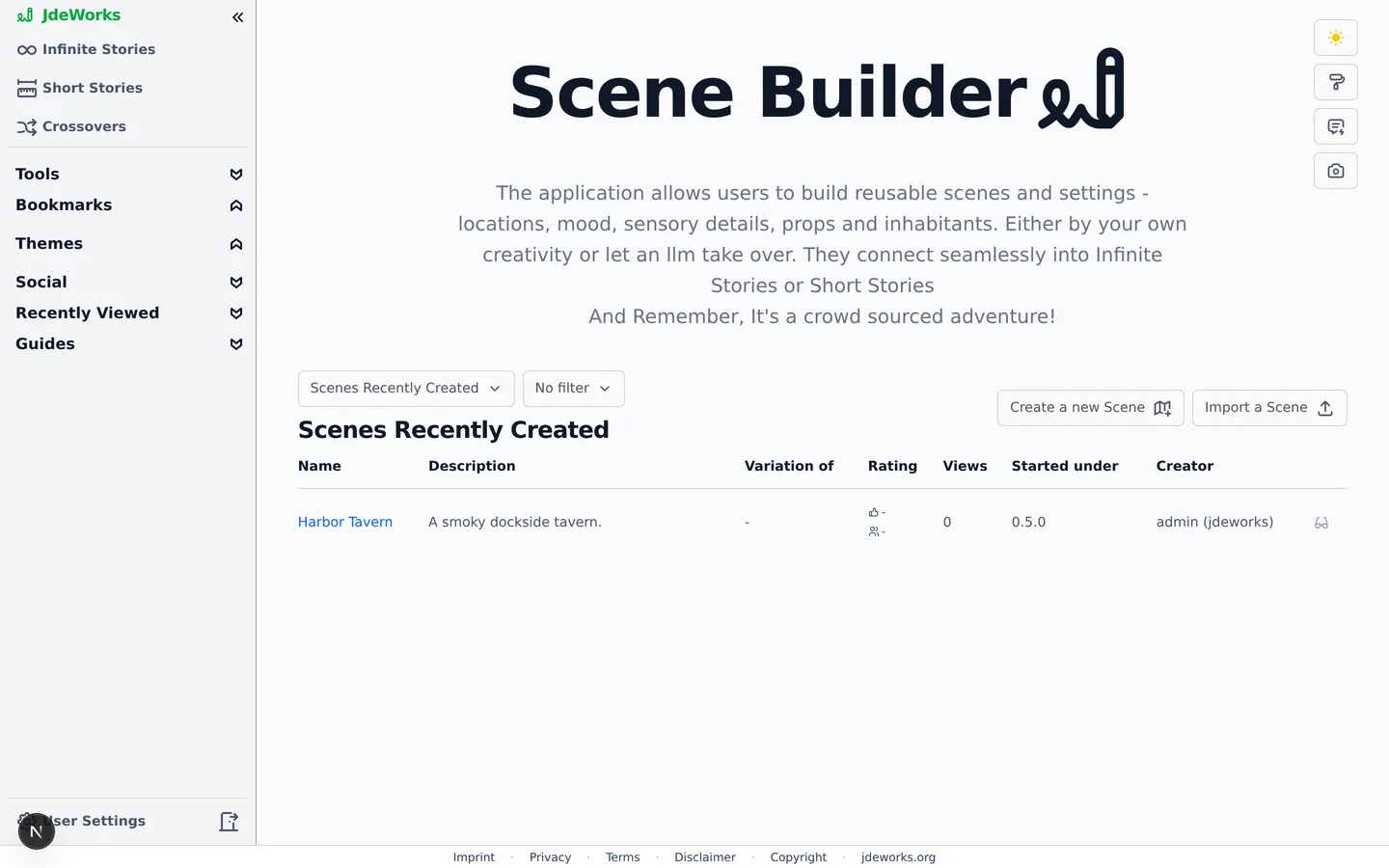
Open Scene Builder from the sidebar's tools group. The table lists published scenes, switchable between Scenes Recently Created, Scenes Most Viewed and Scenes Best Rated. Logged in you also get the mine filter with Only mine and Exclude mine.The public scene library, plus your entry points for new scenes.Three buttons start something new: Create a new Scene, Flesh out from a story and Import a Scene. Browsing works without an account, creating needs one. The table's Variation of column shows when a scene descends from another one.
Creating a scene
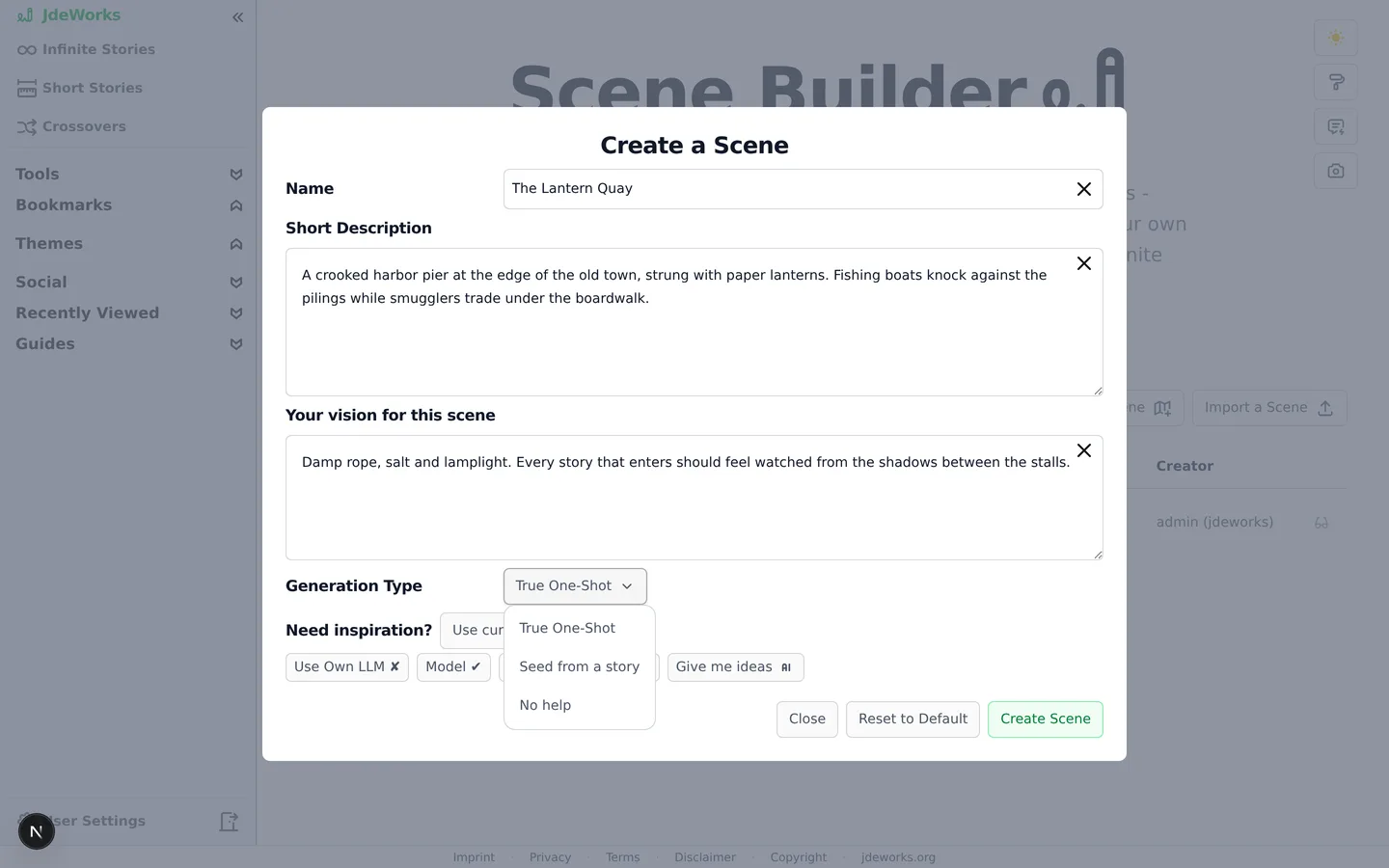
Click Create a new Scene and fill in Name, Short Description and Your vision for this scene.
Pick a Generation Type: True One-Shot generates the sheet in one go from your inputs, and No help leaves the writing to you.
For ideas, the Need inspiration? row generates five scene concepts with Give me ideas. Clicking one fills the fields.
Click Create Scene. The scene page opens. No generation has happened yet.
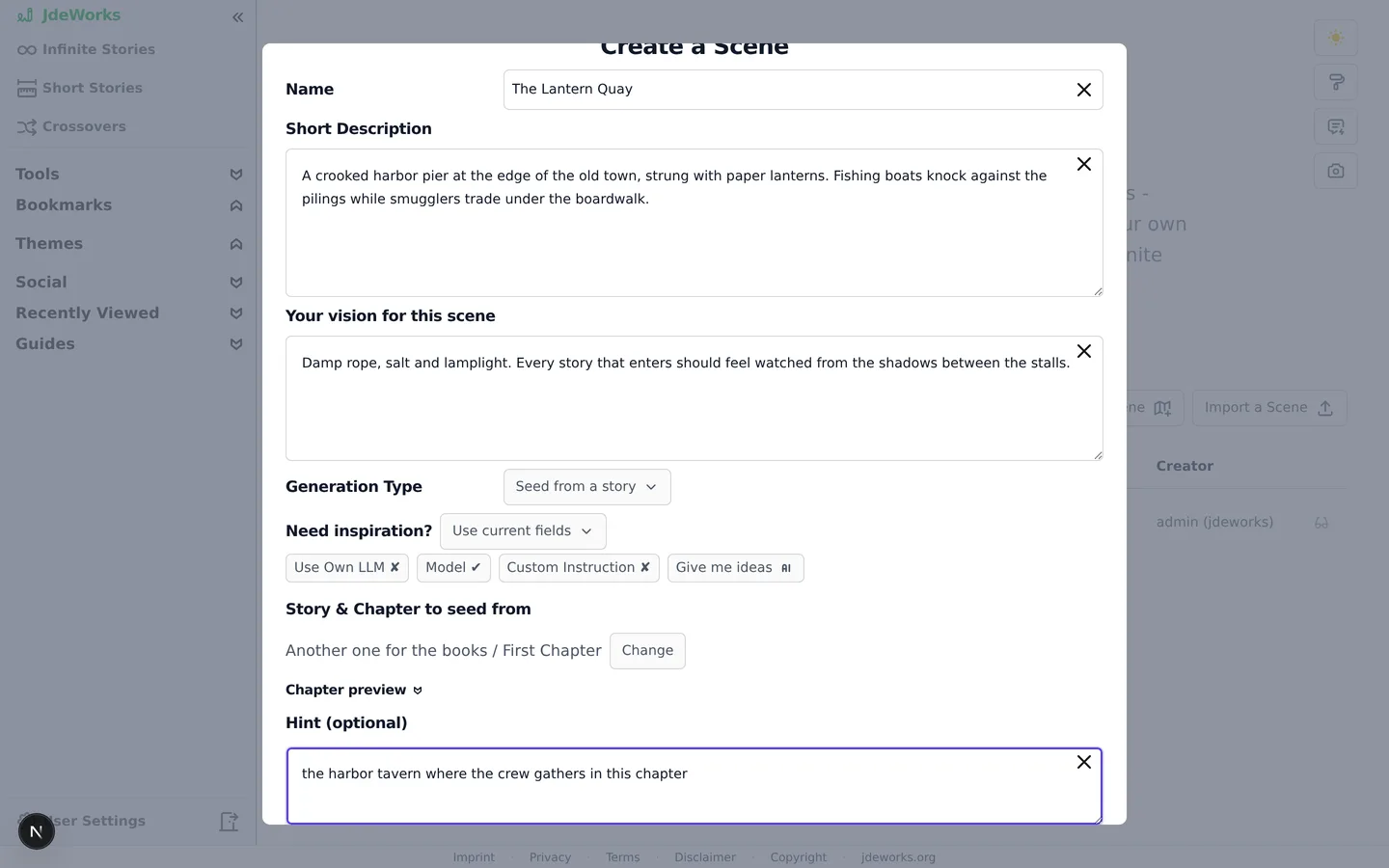
Two ways to build in this dialog: one-shot or by hand.To build a scene from a chapter you already have, use the Flesh out from a story button next to Create a new Scene. Its dialog has a Story & Chapter to seed from picker and, once a chapter is picked, a Hint (optional) field, for example the harbor tavern from this chapter. Flesh out this scene creates the scene, and the AI then extracts a sheet grounded in what that chapter actually describes.The hint tells the extraction which place in the chapter you mean.
The scene sheet
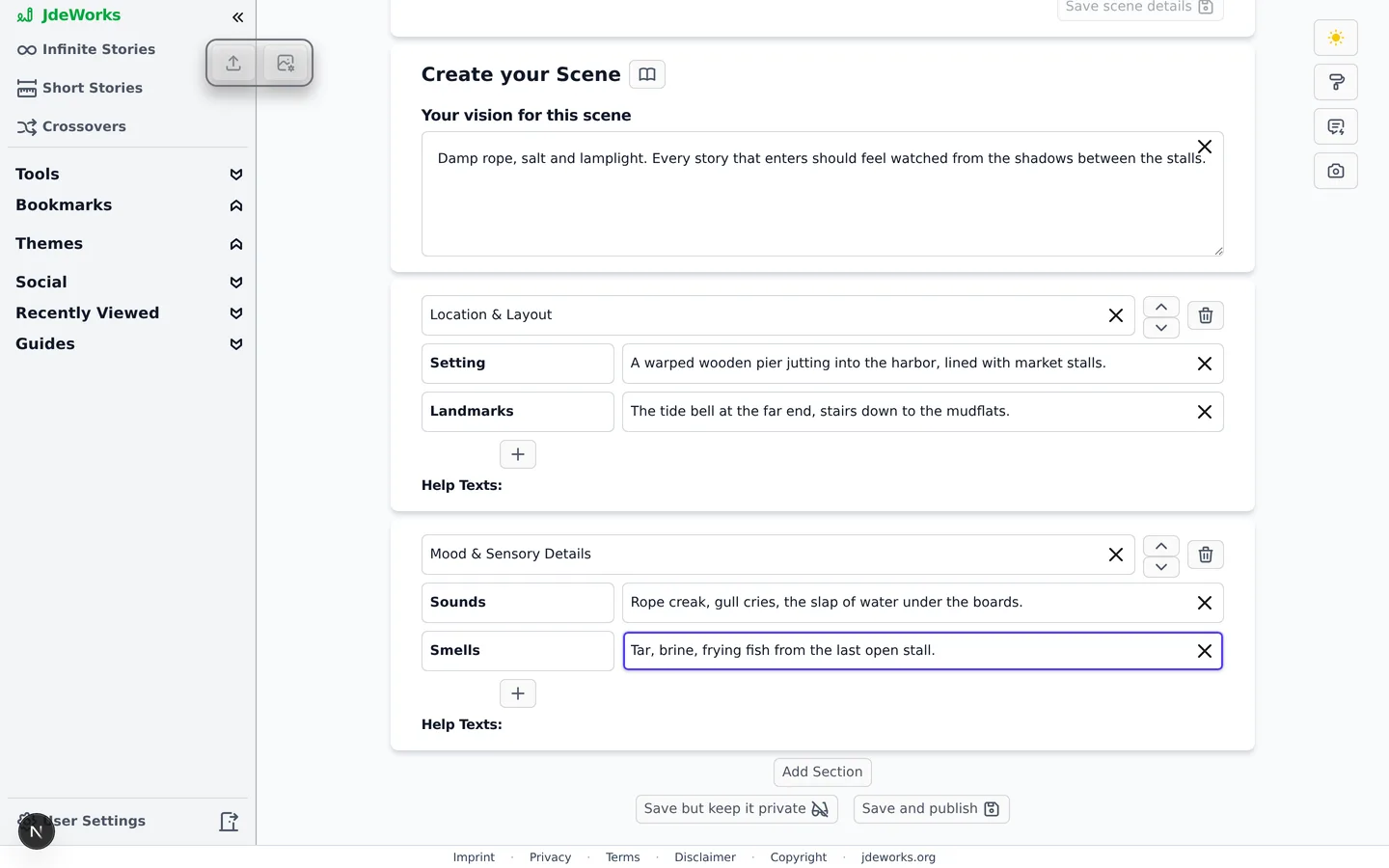
The scene page opens the sheet editor titled Create your Scene. Like a character sheet, it consists of named sections with fields you can add with Add Section, reorder and delete. The AI button either generates the sheet from your inputs or, for seeded scenes, extracts it from the picked chapter.Sections hold the location, mood, sensory details and inhabitants.Two save buttons control visibility: Save but keep it private and Save and publish. Published scenes appear in the public library and in everyone's story-creation picker. The header fields for name, description and the Private: checkbox save separately via Save scene details.
Saving, editing and importing are free. Credits are only spent on the AI buttons, and each shows its price before you click. Importing is free - it costs no credits, as the import dialog itself states.
Scene images
Every scene can carry images. In edit mode the image box offers three controls: an upload button for your own JPG, PNG, WebP or AVIF files up to 5 MB, an image-helper button that opens the AI Image helper, and a delete button. With several images, arrows browse through them.Uploads are free and instant. The Image helper first generates an image prompt from the saved scene sheet, then Generate Images renders it, which bills image credits. The helper stays disabled while you have unsaved changes, since it works from the saved profile.
Using scenes in stories
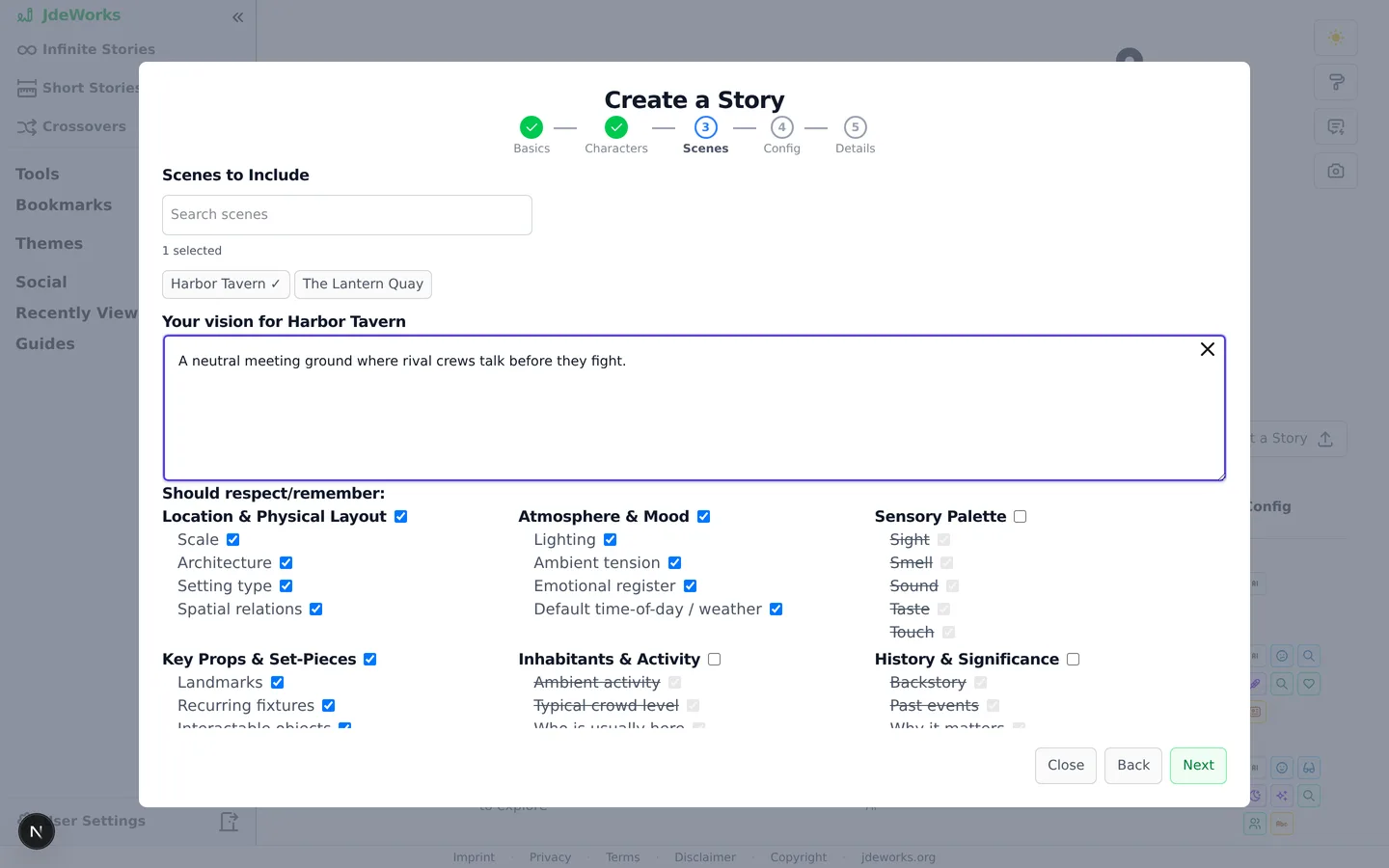
During story creation, the Scenes to Include section lists your scenes plus all public ones, searchable by name. Up to five scenes fit one story. Each selected scene gets Your vision for it in this story and Should respect/remember checkboxes for the sheet parts that matter.Up to five scenes per story, each with its own vision.Infinite stories can also change scenery on the fly. When continuing a chapter, a scene dropdown offers Keep current, any scene already in the story's roster, or Attach another scene from your own and public scenes. Export and import round it out: Export downloads a scene as JSON, Import a Scene recreates it, private by default.
Best practices
Seed scenes from chapters you already like. The extraction keeps details consistent with what readers have seen.
Use the Hint (optional) field when a chapter contains several locations, so the extraction picks the right one.
Fill the sheet with sensory details rather than plot. Scenes are backdrops that many different stories should be able to enter.
Keep experimental scenes on Save but keep it private. Publish the ones polished enough for other writers' pickers.
Give important scenes an image. Story readers see scene images, and a strong visual sets the mood before the first line.
Under the hood
Creating the scene record, saving sheets, importing, exporting and uploading images are plain database operations at no cost. Only the AI buttons spend credits and each displays its estimated price up front.Seed-from-story extraction runs a grounding prompt over the picked chapter's text, so the sheet only contains what the chapter supports plus your hint.Scene exports are versioned JSON envelopes. Imports accept version 1 files, arrive private by default and pass the same content moderation as new scenes.The story-creation picker returns your own scenes plus public ones. Private scenes of other users never appear. A story holds at most five scenes.Standalone scene images run in free-for-all mode without a story's style lock, so no consistency multipliers apply. Premium users can route image generation through their own provider keys.