Everything you can adjust about your account and your reading view lives in one dialog: User Settings. This guide walks through its six tabs, shows how to declutter the reading experience and explains what the account tab tells you about your credits.You need a logged-in account. Nothing here costs credits.
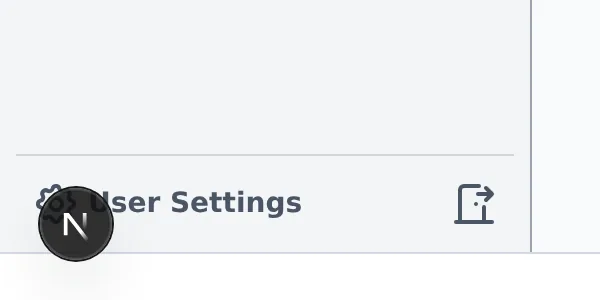
The settings dialog opens from the gear icon at the bottom of the sidebar, labeled User Settings. It is reachable from every page.The gear at the sidebar bottom opens User Settings.The dialog has six tabs. Reading and Images control what you see while reading, Browsing sets the defaults for the story overview pages, Notifications picks which in-app notices you get, Sound turns background sound on or off and sets its volume, and Account holds your profile, tier and credit balances. The tab bar starts on Reading every time you reopen the dialog.
Reading: declutter the chapter page
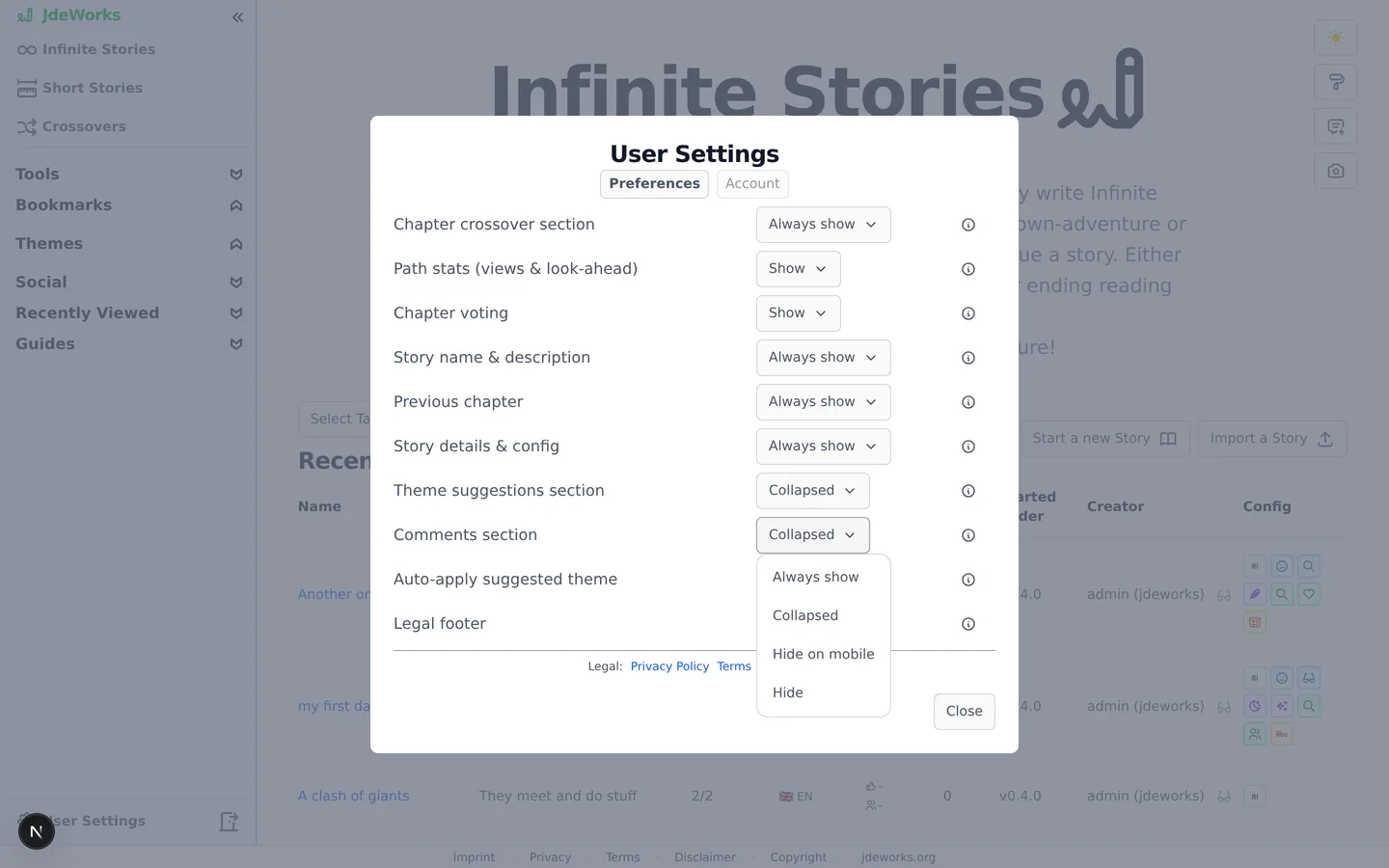
Each row on the Reading tab controls one section of the chapter-reading page. Most rows offer more than on/off: a section can stay always visible, collapse behind a click, hide only on phones, or disappear entirely.
Open User Settings. It opens on the Reading tab.
Pick a row, for example Path stats, and open its dropdown.
Choose a mode. Changes apply immediately, there is no save button.
Open a story to see the effect.
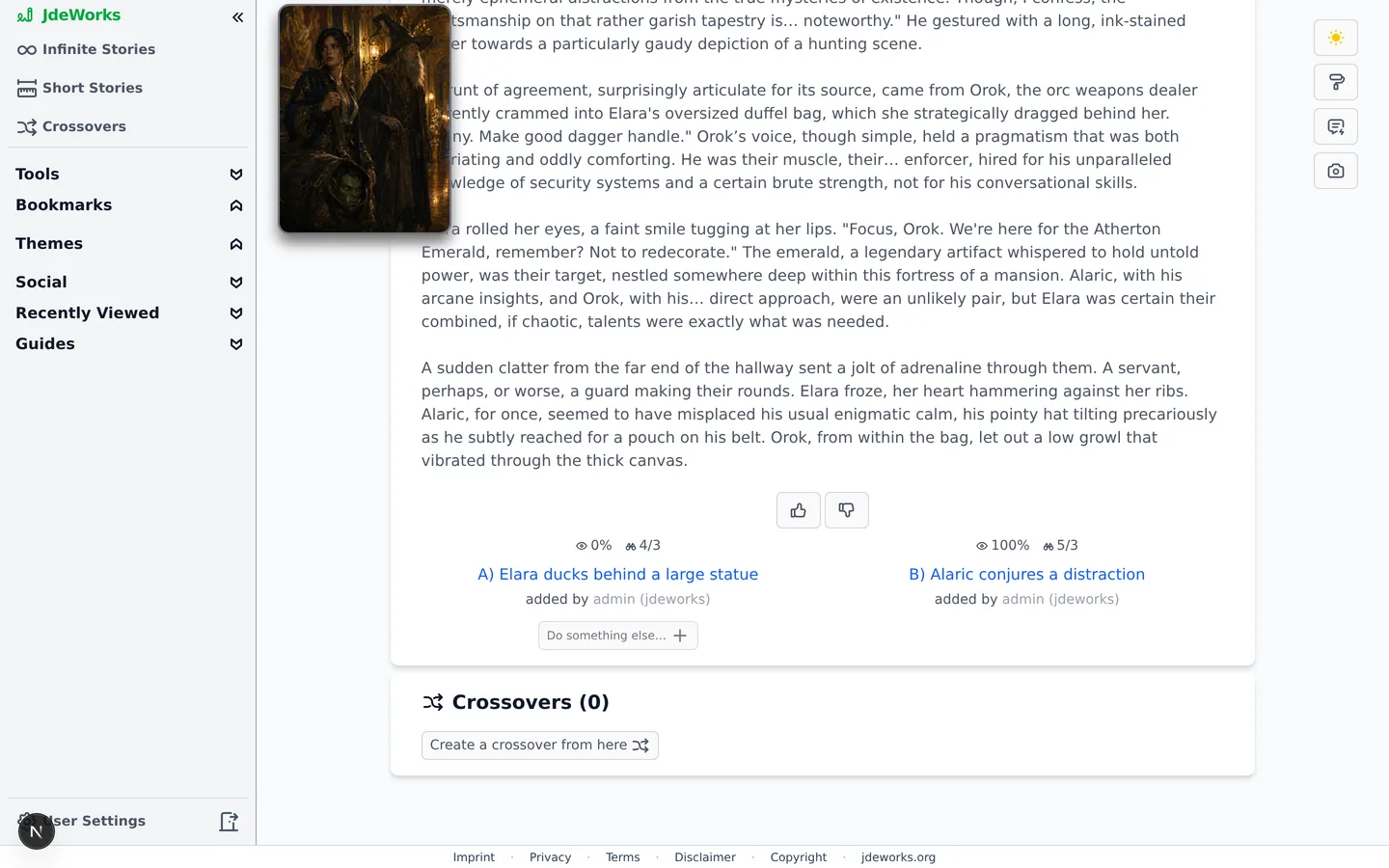
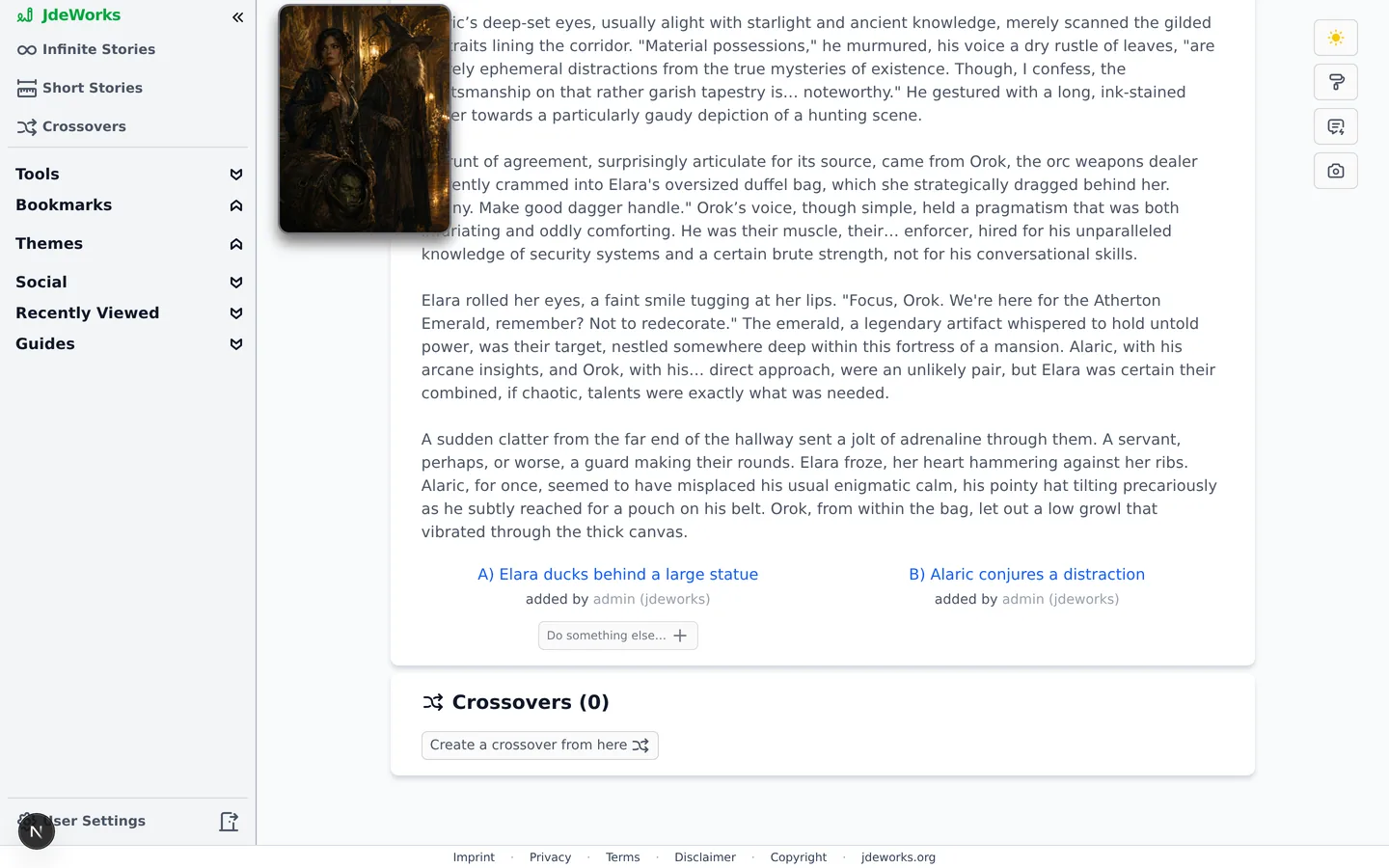
Sections with a Collapsed mode stay one click away instead of gone.The rows cover: chapter crossover, path stats, chapter voting, the story name & description card, the previous chapter card, comments and theme suggestions.Default reading view: vote buttons plus view and look-ahead stats on every choice.The same chapter decluttered: just the story and its choices.
Signed in, these rows follow your account: set them on your desktop and your phone picks them up. Signed out they stay in that browser. Either way, nothing you change here affects other readers.
Images: story image placement and theme auto-apply
Story images get two rows of their own: one for desktop, one for phones. Each offers four modes. Floating keeps the image in its movable box next to the content. Inline, at top and Inline, at bottom place the image inside the content flow, at the start or end of the chapter (or of the character/scene sheet). Hidden removes the image completely and also skips downloading it. The defaults are Floating on desktop and Inline, at bottom on phones, where the floating box would not fit the screen. These rows control what shows, not how it looks: for colors, fonts and the rest of the appearance, see themes & the Designer .The remaining two rows are Story details & config, the title/description/config block on story overview pages, and Auto-apply suggested theme, which can automatically preview a community-suggested theme while you read: the story or chapter creator's pick only, or anyone's top pick. It never changes your own saved styling, and clears the moment you leave the story or apply a theme yourself.
Signed in, these rows follow your account across devices. Signed out they stay in that browser.
Browsing: overview and library defaults
The Browsing tab sets which prepared table each overview page opens on: one row each for Infinite Stories, Short Stories and Crossovers. Default story filter decides whether those tables start out including your own stories, only yours, or everyone else's, and Default language filters them to one language. Accounts that accepted the Terms of Service additionally get a Legal footer row to hide the app's footer links, with a one-time confirmation since the footer carries the legally required Imprint, Privacy and Terms links.Setting a table or filter here is the same act as setting it with the page's own dropdown: both write the same stored default.
Account: profile and credits
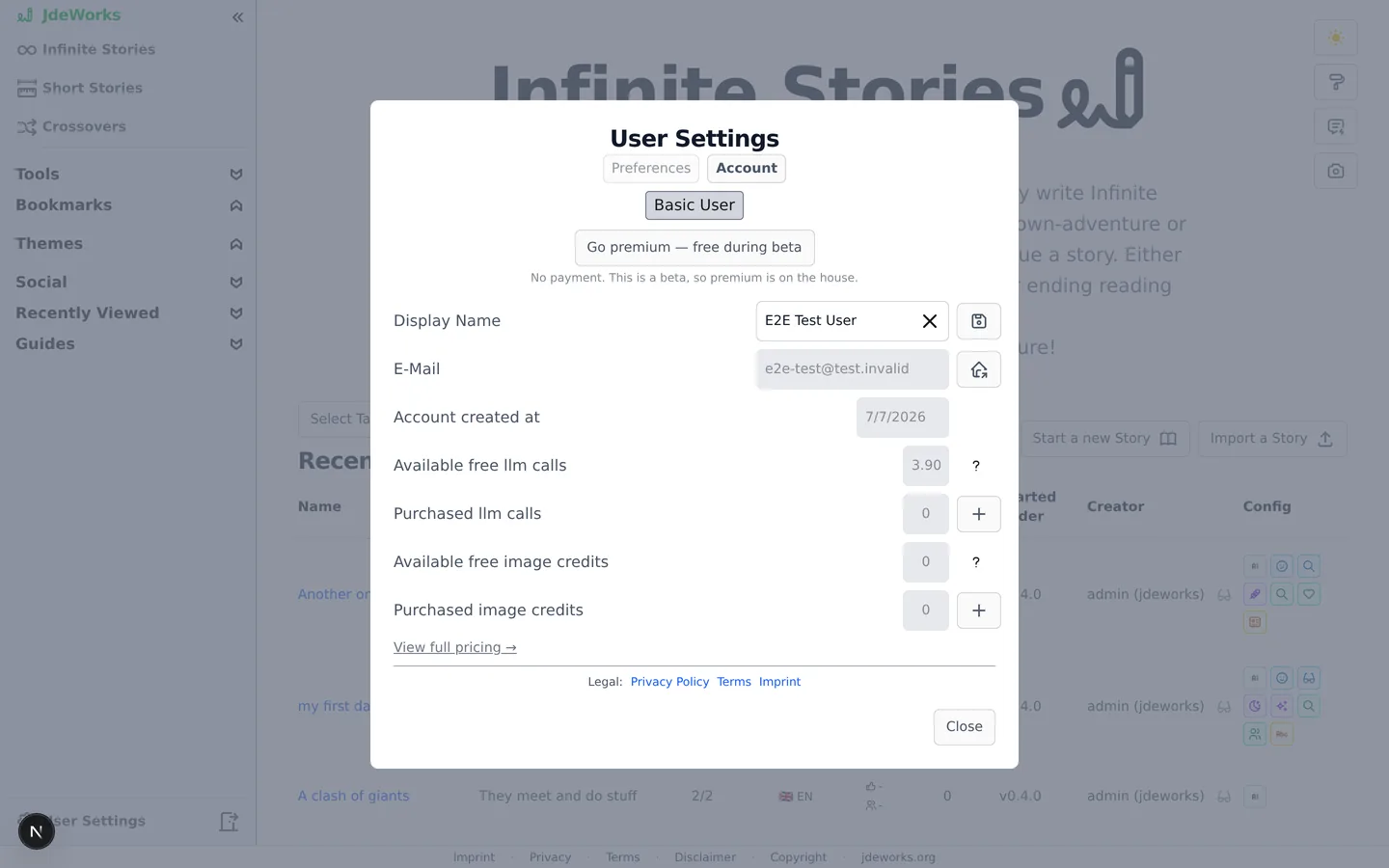
The Account tab starts with your tier badge, then your profile fields and credit balances.Profile and credits at a glance.
Display Name: type a new name and press the save button. Names are checked live for availability, so a taken or banned name shows a warning before you save.
E-Mail: read-only here. The button next to it takes you to the account settings page of the identity provider, where e-mail and password changes happen.
Credits: four numbers show your free and purchased text credits and image credits. The question-mark tooltip tells you how many days remain until the free credits reset.
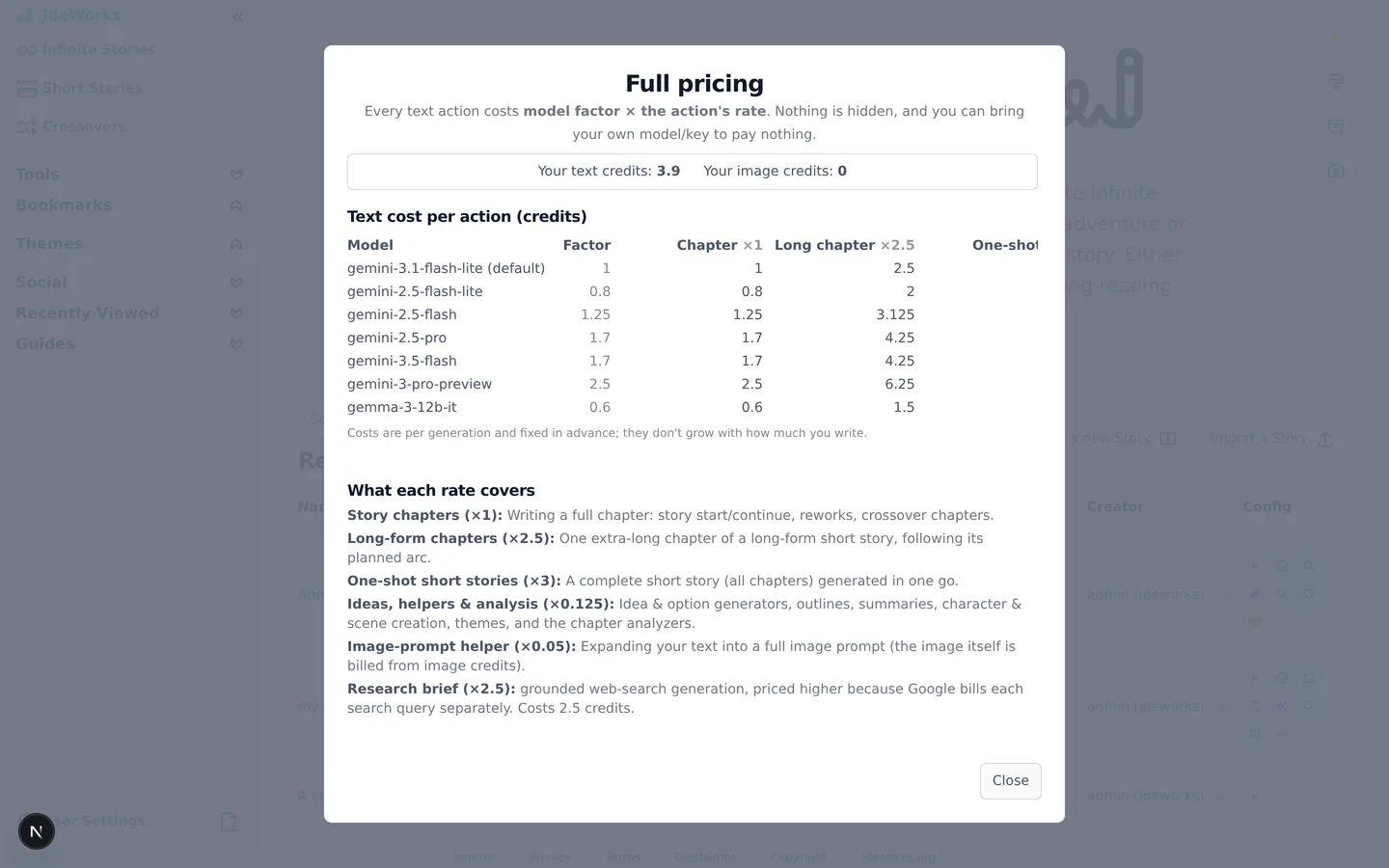
View full pricing at the bottom opens the pricing overview with every cost explained.
The pricing overview explains every credit cost.During the beta, non-premium accounts also see a Go premium – free during beta button. One click upgrades your account at no cost and unlocks the premium features plus the monthly premium credits. See the credits & premium guide for the full picture.
Best practices
Use Collapsed instead of Hide for sections you use occasionally. Comments and theme suggestions stay one click away instead of disappearing.
On phones, prefer the inline image modes. The floating image box is made for wide screens and can sit half off-screen on a phone.
Hide the story card and previous chapter on mobile only. Phones gain the most from fewer cards, while the desktop keeps the context.
Set up each device separately on purpose: a minimal phone setup for reading on the go, a full desktop setup for writing.
Hide the legal footer only after noting that the legal links stay available at the bottom of the settings dialog itself.
Under the hood
The Reading, Images and Browsing rows live in browser localStorage, which is what makes them apply instantly and work without an account. Signed in, they are additionally mirrored onto your account and read back at sign-in, so a second device starts from the same setup.Designer styling and saved themes are the exception: those stay in the browser you set them in, by design.Display name, the legal-footer choice and your tier are account state on the backend. Name changes are debounced and checked against existing and banned names before the save button activates.E-mail and password live in the identity provider (Ory Kratos), so the app redirects to its self-service page instead of editing them directly.Free text credits and image credits top up lazily: the first request of a new month triggers the reset.