By default, every image generation picks its own style, so a story can end up with a watercolor cover next to a photorealistic chapter scene. The Image consistency setting on the story overview fixes that: lock style categories with a preset, or pin one reference image that every generation follows.This guide covers all four consistency modes, the Customize modal for presets and anchors, and what anchor mode costs. Generating images itself is covered in the image generation guide .
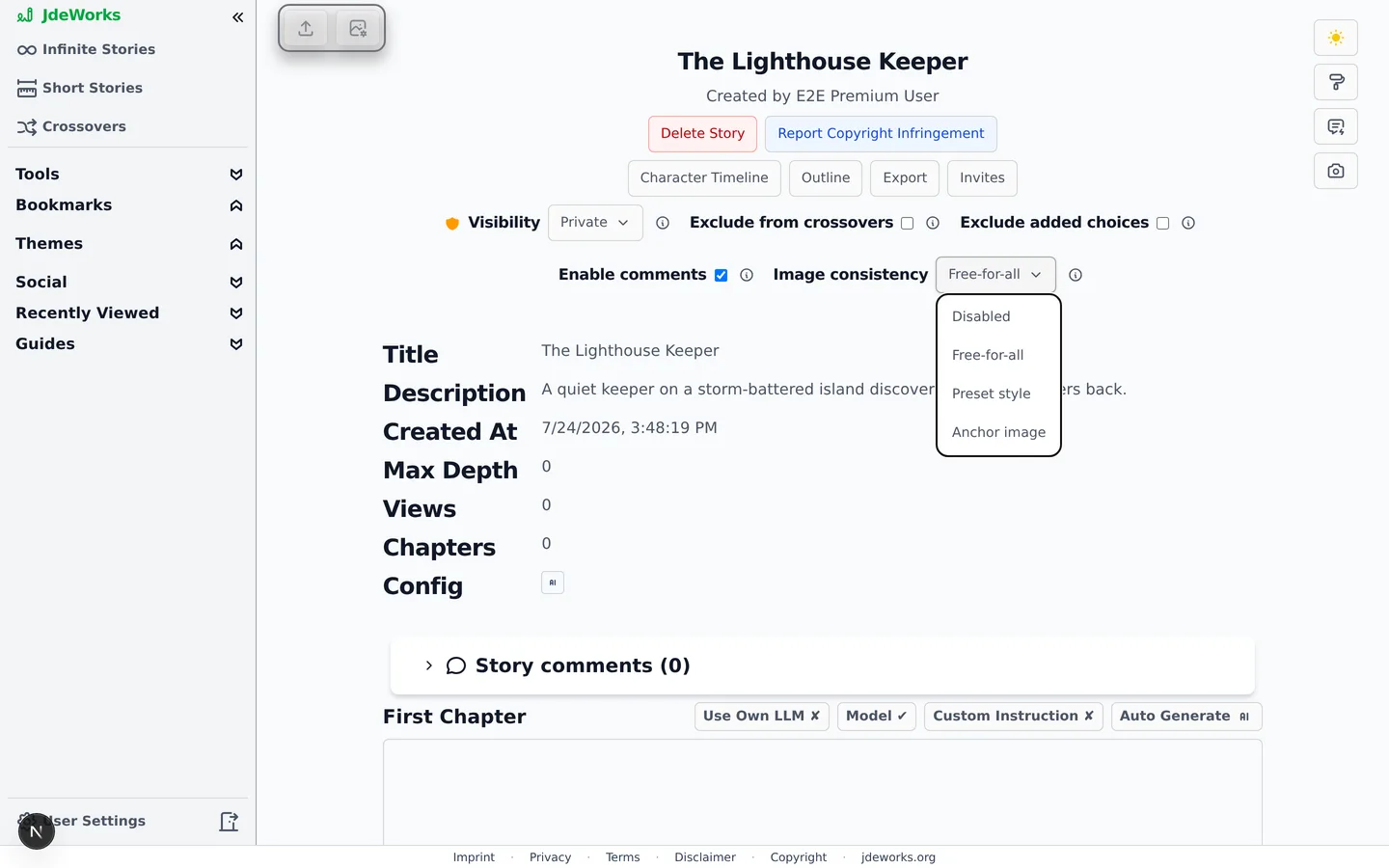
Open one of your stories and find Image consistency in the owner controls, inside the overview page's Story details block. That block opens collapsed on every visit, so tap it open first. The dropdown switches the mode directly, and the info icon next to it explains the current one.Four modes. Free-for-all is the default.
Free-for-all (default): every generation picks its own style, unrestricted.
Disabled: no chapter or cover images can be generated or uploaded for this story.
Preset style: one or more locked style categories are forced into every image generation. Premium.
Anchor image: every generation references one fixed image so the look stays visually consistent. Premium.
Only the story owner sees these controls, and the mode applies to the whole story: cover and chapter images alike.
Preset style: lock categories
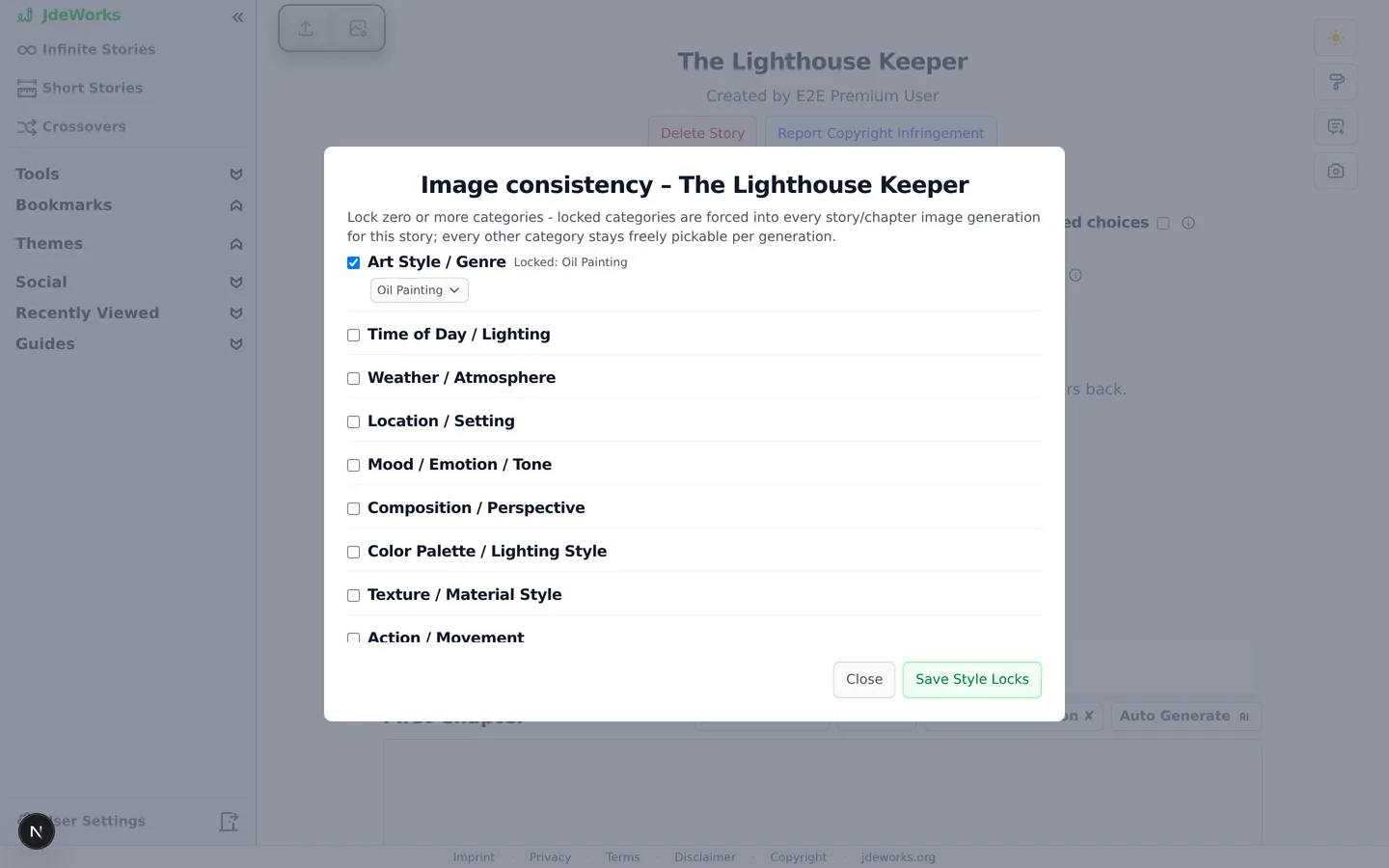
Preset mode locks style categories like art style, lighting or mood. Locked categories are forced into every generation for this story. Everything you leave unlocked stays freely pickable per image, so you decide how tight the corset is.
Select Preset style in the dropdown. If no categories are locked yet, the Customize modal opens automatically.
Tick the checkbox of a category to lock it, then pick a value from its dropdown.
Confirm with Save Style Locks. The button stays disabled until at least one category is locked.
Lock as many or as few categories as you want. One is the minimum to save.Back on the overview, the setting now shows a Locked categories summary, and a Customize button lets you adjust the locks later.The overview always shows what is currently locked.
Anchor image: pin one look
Anchor mode goes further than a preset: every generation gets one fixed picture as a reference, and the model stays visually close to it. This is a strong hint rather than a guarantee, so some drift is still possible.
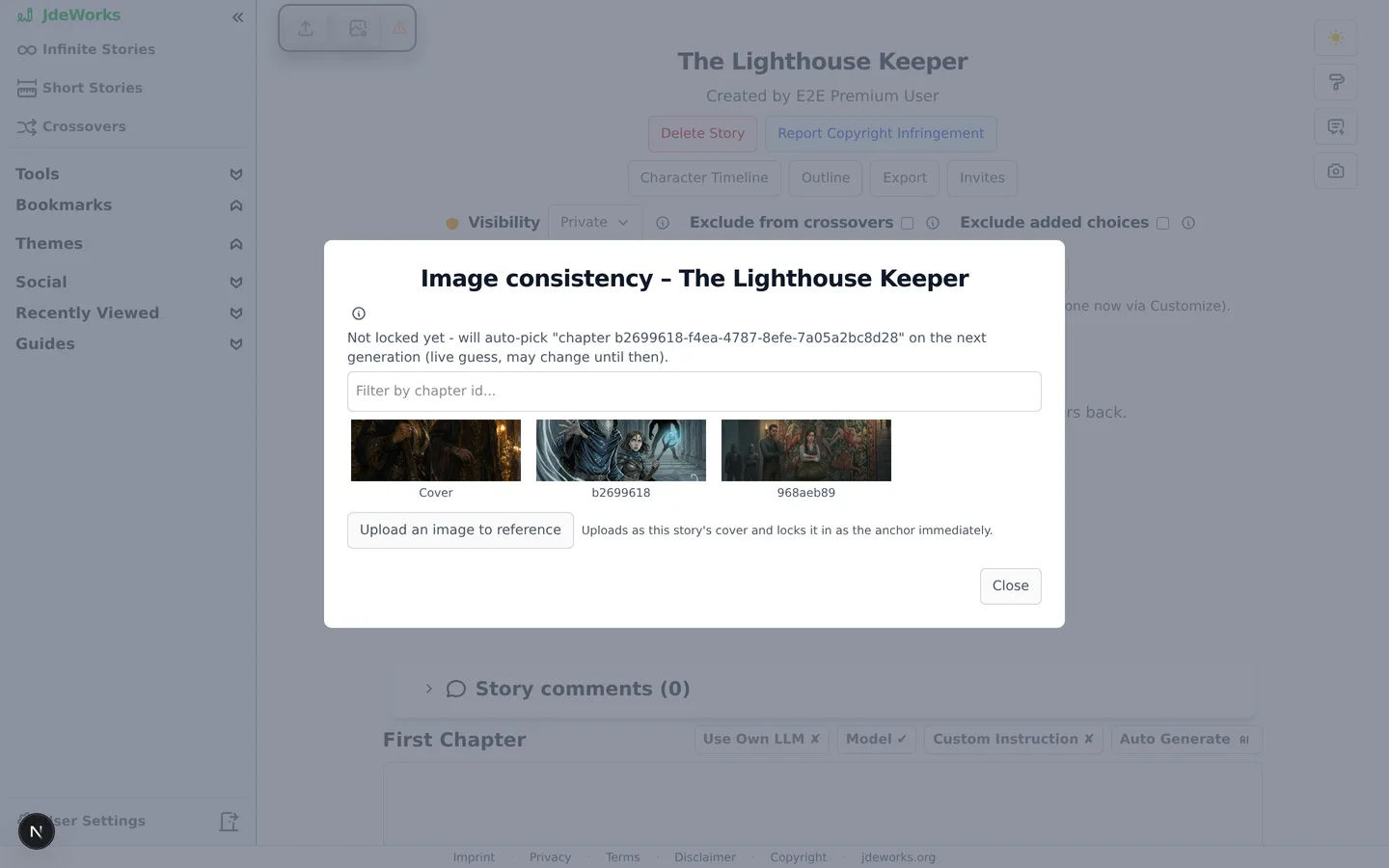
Select Anchor image in the dropdown, then click Customize.
Pick the anchor from your story's existing images: the cover and every chapter illustration are offered in a browsable grid.
No images yet? Use Upload an image to reference. The upload becomes the story cover and locks in as the anchor in one step.
Pick any existing story image as the anchor, or upload a fresh reference.
You can also skip picking entirely. Without a locked anchor, the story auto-picks on the next generation: the most recent chapter image, or the cover. Clear pin returns to auto-pick at any time.
Anchor references raise the price: every image generation for the story bills about 1.5× the model's normal image cost. The exact price shows in the Image helper before you generate.
Uploads, and combining preset with anchor
Manual image uploads are only possible in Free-for-all mode. In Preset and Anchor mode the app blocks them, because an uploaded image would bypass the consistency rules. The single exception is the anchor picker's own cover upload described above.Preset and Anchor also combine: in the Customize modal of a Preset story, enable Also attach an anchor reference image. You then get locked categories plus a visual reference, at the anchor's extra credit cost.
Best practices
Decide the mode before generating many images. Switching later leaves earlier images in earlier styles, and nothing is regenerated automatically.
Start with Preset and one or two locked categories. A full lock of every category rarely looks better than locking art style plus mood.
For anchor mode, pick the anchor yourself instead of relying on auto-pick, so you know exactly which look the story commits to.
Remember the 1.5× anchor multiplier when generating candidates: two anchored candidates cost three normal images' worth of credits.
Use Disabled for text-only stories. It also stops collaborators' image ideas from landing on your story.
Under the hood
The mode lives in the story's config (imageMode, plus imageStyle for preset locks and imageAnchor for the pinned reference). Only the owner can change it, and the backend validates every change.Preset locks are a map of style category to value. The backend rejects Preset mode with an empty map, which is why the modal requires at least one locked category before saving.The anchor resolves server-side at generation time: a locked anchor is used as-is, otherwise the most recent chapter image (or the cover) is picked and locked in on first use.Anchored generations bill the model's image factor times an anchor multiplier of about 1.5. A reference image adds input cost on the image model rather than a second generation.Upload blocking outside Free-for-all is enforced server-side. The anchor picker's cover upload is a deliberate owner-only exception so a fresh story can get a reference without leaving the modal.