Every story, chapter, character and scene has an image slot, and all of them are filled the same way: through the Image helper. This guide walks the full path from a one-line idea to a confirmed image, and explains what each step costs.You need a story with at least one chapter (or a character or scene). Image generation uses image credits, which are separate from text credits.
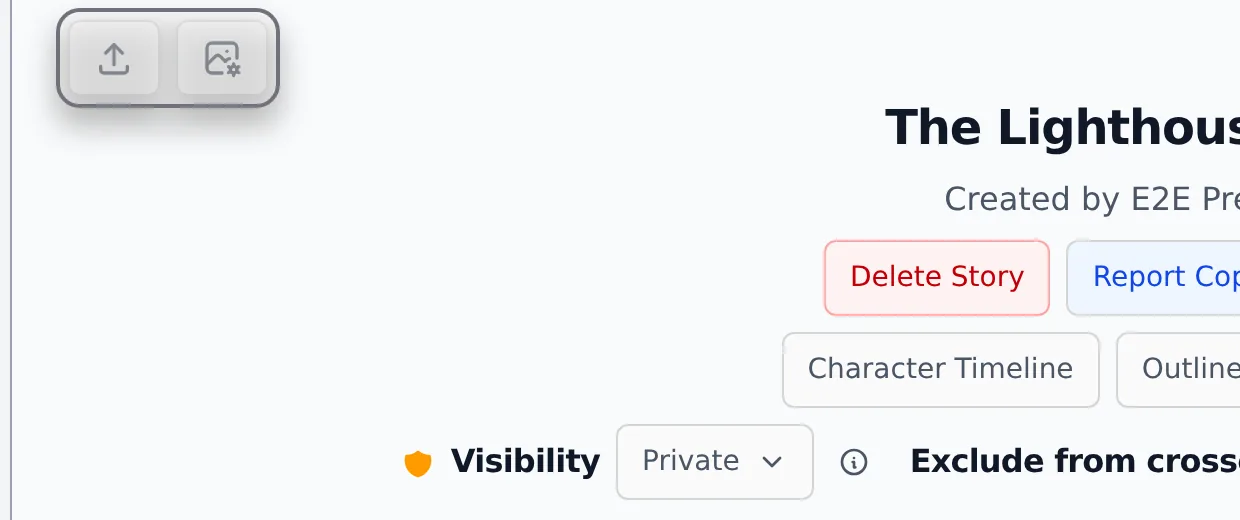
Every image slot carries a small toolbar with upload and generate actions (plus delete once an image exists). The story cover, chapter illustrations, character portraits, scene images and short-story covers all have one.The image toolbar on a story that has no cover yet.The generate action opens the Image helper modal. It looks the same everywhere, only the available attributes differ by context.
From idea to image prompt
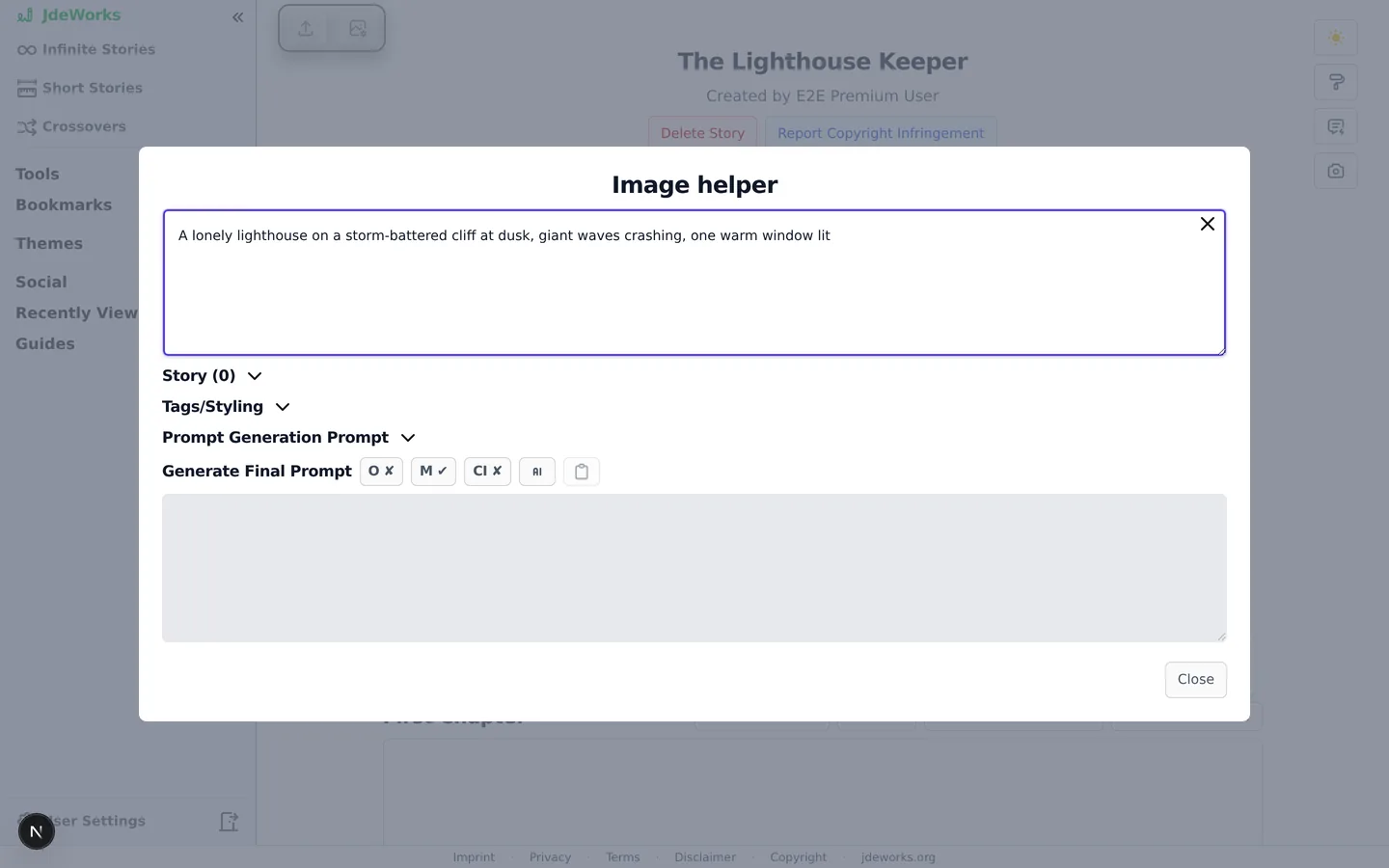
Describe your idea in the top text field. Short is fine: a lonely lighthouse on a storm-battered cliff at dusk.
Open the Story section to pull character and scene attributes in, instead of re-describing them by hand.
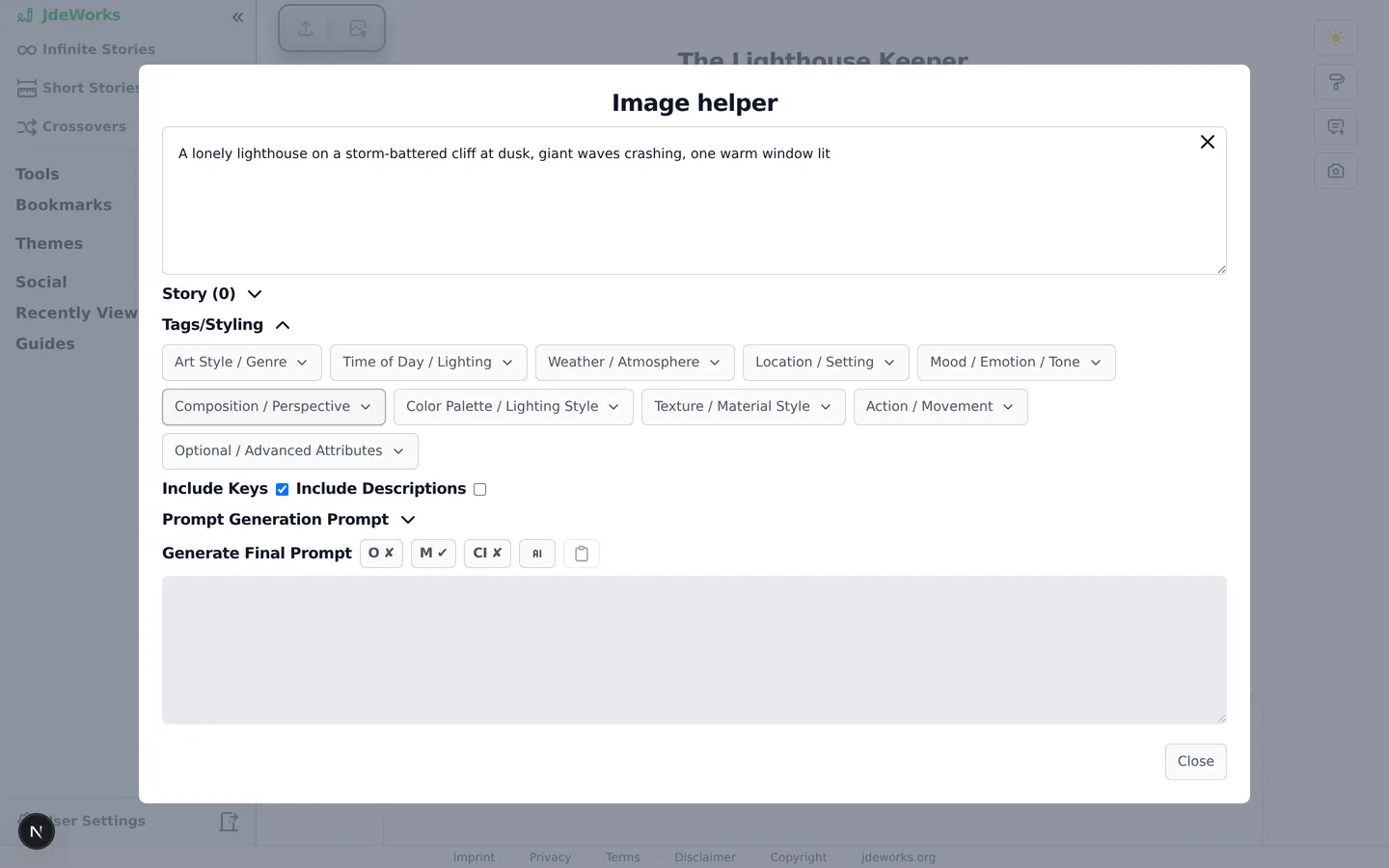
Open Tags/Styling and pick categories like art style, lighting, mood or composition to steer the look.
Click the AI button next to Generate Final Prompt. The helper turns your idea plus attributes and tags into a detailed image prompt. This bills a fraction of a text credit, far cheaper than a wasted image.
A one-line idea is enough to start.Tag categories steer the look without prompt engineering.
Costs, providers and generating
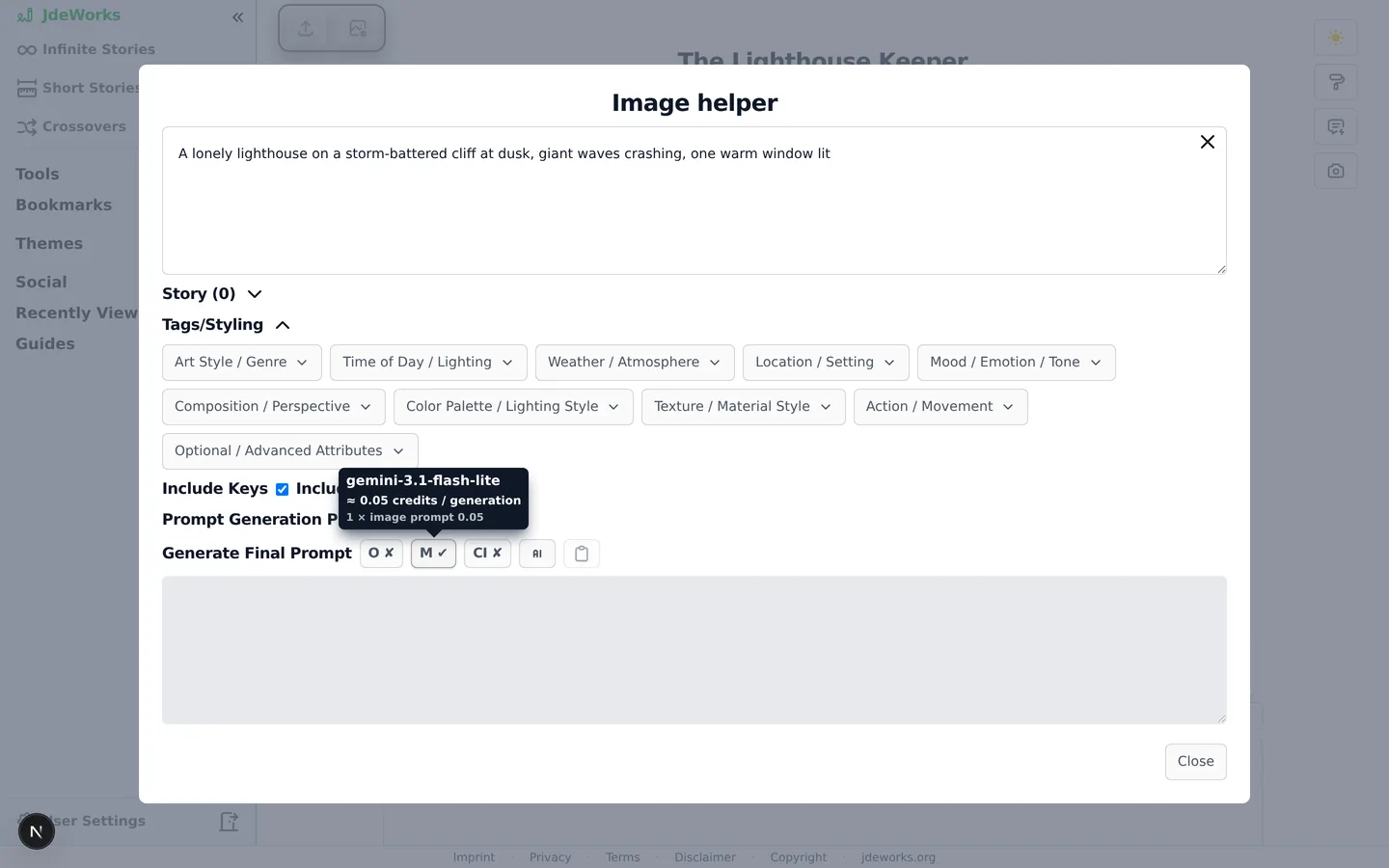
Costs are never hidden: hover the small M (model) button and a tooltip shows the exact model and credit price of the next step before you click anything.Hover the model button to see the price before you spend.
With a final prompt ready, choose the Provider: backend generation uses your image credits, premium users can instead use their own provider key (no credits).
Set the number of candidates (start with 1 or 2) and click Generate Images. Candidates fill the slots side by side.
Select the image you want and confirm with Use Selected Image.
Every requested image is billed, including the candidates you don't keep. Two candidates cost two images' worth of credits, whether you confirm one, both or none.
Only confirmed images land on your story. Unconfirmed candidates disappear when you close the modal.A confirmed cover on the story overview.
One story, one look
By default every generation picks its own style (free-for-all). If you want all images of a story to share a style, set the story's image consistency mode: preset styles lock one or more style categories, an anchor image makes every generation reference one fixed picture.Both modes are premium features with their own guide: keep a consistent image style .
Best practices
Expand the prompt with the AI helper first. The expansion costs far less than a badly prompted image.
Generate 1 or 2 candidates, not the maximum. Every requested image is billed even if you keep none.
Pull character attributes into the prompt instead of re-describing characters by hand. The details stay consistent with the story.
Check the cost tooltip before generating: models have different credit factors, and anchor mode raises the per-image price.
Decide the story's consistency mode early. Switching modes later leaves earlier images in earlier styles.
Under the hood
Per-image cost = the model's image factor, multiplied by the anchor factor (about 1.5×) when an anchor reference applies. Generation is blocked when candidates × cost would exceed your balance.The prompt expansion is billed in text credits as its own prompt type, cheaper than a chapter generation.Premium bring-your-own-key generation runs on your provider account. Credits stay untouched, and the image you confirm is uploaded into app storage.Prompts pass a server-side text NSFW check. Generated images are additionally classified by an image NSFW service; flagged variants are blurred for guests and gated by the explicit-content setting.Per-story image modes: Disabled (no images at all), Free-for-all (default), Preset style and Anchor image. Manual uploads are only possible in Free-for-all mode.