Quick Analyze turns the Story Analyzer loose on any text you paste in. A chapter draft, a scene from your notebook, a page you wrote years ago: drop it in, press one of the analysis tools and get structured feedback on plot, pacing, language, characters and more. No story is created and nothing is saved.Each analysis costs a fraction of a text credit, so you can afford to run it often. This guide walks through the page, the eight tools, the optional context fields and how to read a result.
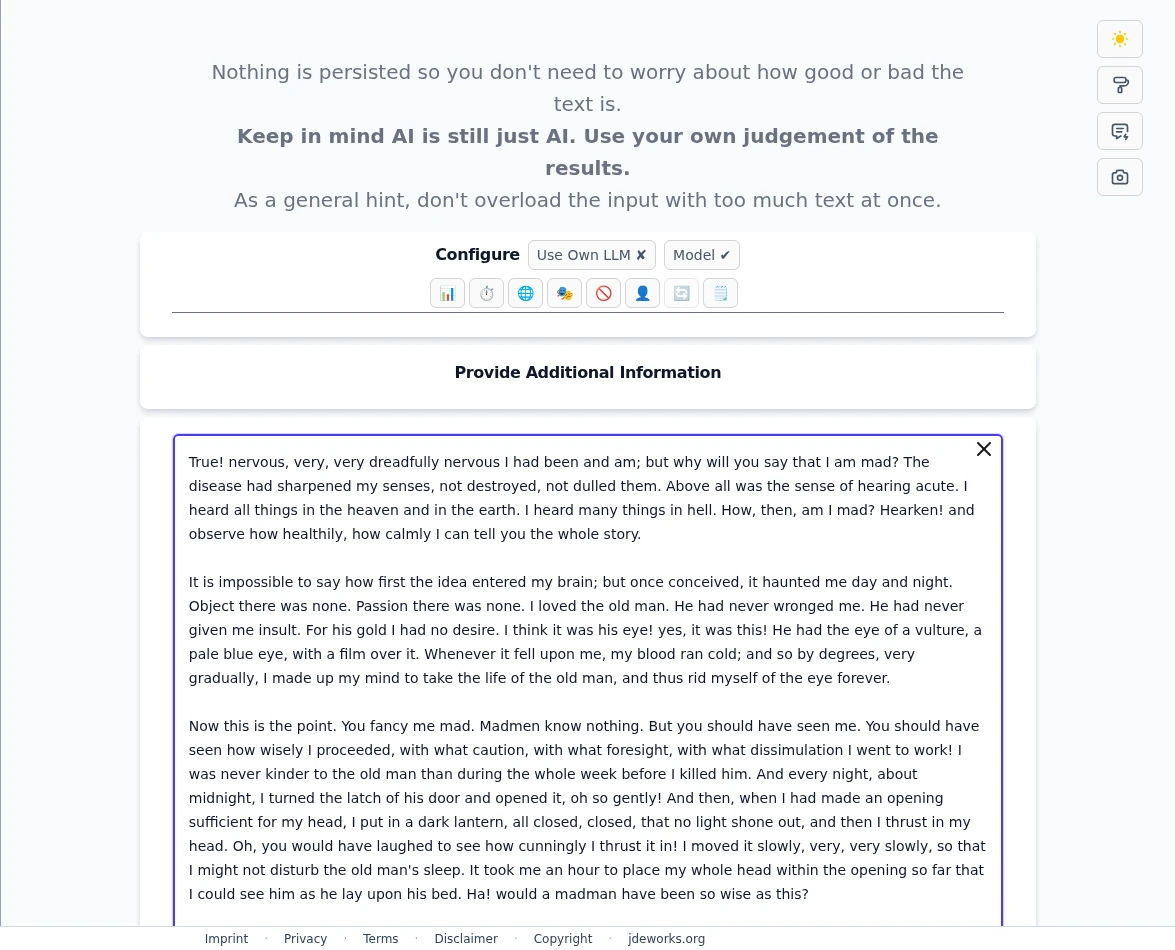
Click Quick Analyze in the sidebar's tools group. You need to be logged in. The page is intentionally bare: a short reminder that nothing is persisted, the Configure row with the analysis tools, a collapsed Provide Additional Information panel and one big text field.Paste your text into the big field. The tools unlock once there is enough to analyze.
Because nothing is persisted, you never need to worry about how rough the text is. The flip side: leaving the page discards your results, so copy out anything you want to keep.
The eight analysis tools
The icon buttons in the Configure row each run one analysis over your pasted text. Hover a button to see its name. The tools stay disabled until your text passes 50 characters.One button per analysis. Hover for the name, click to run.
Plot checks structure: stakes, dramatic question, arc progress and where the tension curve rises.
Pacing looks at rhythm and where the text drags or rushes.
Language reviews word choice, sentence flow and style.
Character & emotions examines how believable the cast and their feelings read.
What to avoid flags cliches and weaknesses to cut.
Humanization judges how natural and human the prose sounds.
Summary condenses the text into a short recap.
Rework rewrites the text based on analyses you already ran. It only unlocks after at least one real analysis exists and opens its own configuration dialog first.
Ran a tool already? Its button greys out with (up to date) until you change the text. Edit a single word and everything becomes runnable again, with old results marked (outdated).
Giving the analyzer context
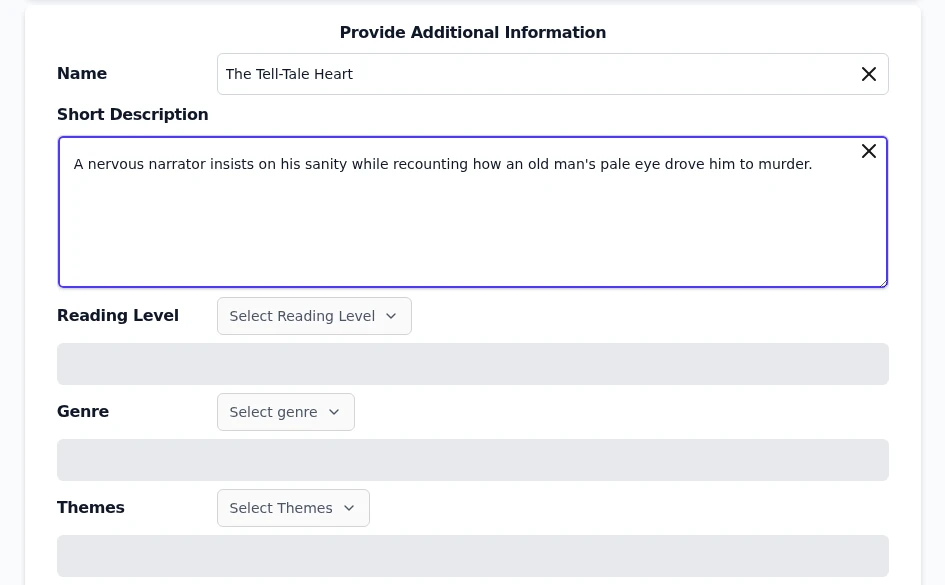
Click Provide Additional Information to expand the context panel. Everything here is optional: a name, a short description, plus the same reading level, genre, tone and theme pickers you know from story creation. Whatever you set is passed along with your text, so the analyzer judges the piece against your intent instead of guessing it.Optional, but it sharpens the feedback: tell the analyzer what the text is trying to be.Context matters most for Plot and What to avoid. A horror opening gets very different advice when the analyzer knows it is meant to be a children's story.
Reading a result
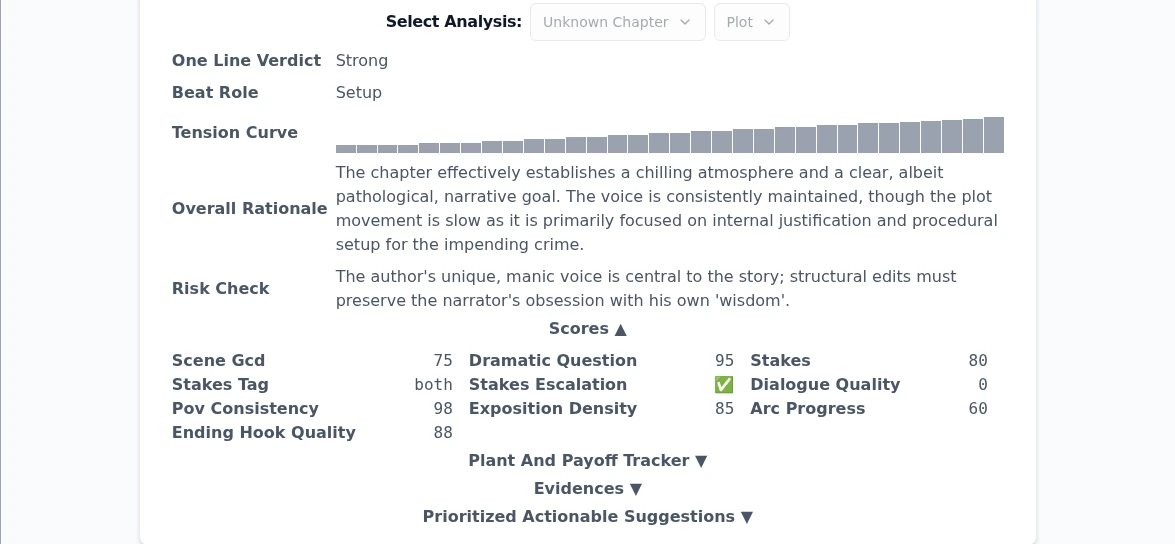
Results stream in below the buttons. Each tool has its own layout. A Plot analysis, for example, opens with a one line verdict and the chapter's beat role, draws a tension curve over the text, explains its overall rationale and lists numeric scores for things like stakes, POV consistency and ending hook quality. Collapsed rows such as Prioritized Actionable Suggestions expand on click and hold the concrete advice.A Plot result: verdict and tension curve on top, scores and expandable suggestions below.Run several tools and the Select Analysis dropdowns let you switch between the finished results. The Rework tool can then rewrite the text using that accumulated feedback, and the reworked version lands back in the text field for another round.
AI feedback is a starting point, never a verdict. The page says it itself: use your own judgement of the results.
What it costs
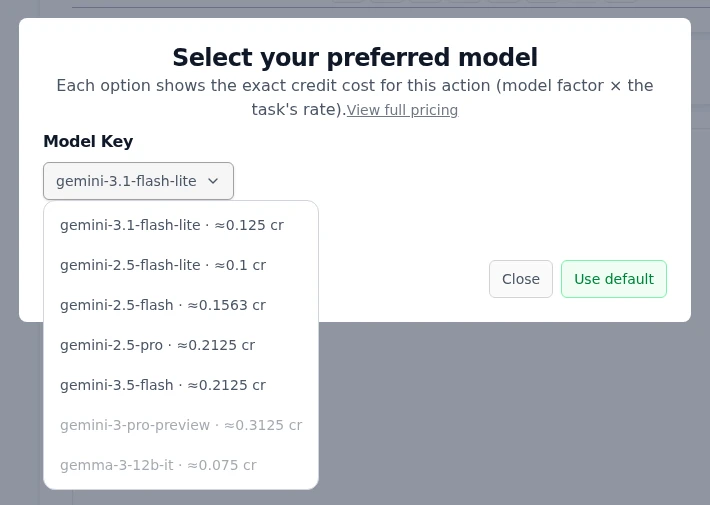
Analyses are billed at the analyzer rate: an eighth of the chosen model's chapter price. On the default model that is about 0.125 text credits per run, so a full pass with all six analysis tools plus a summary costs less than one credit. Open the Model dialog in the Configure row to see the exact price per model before you run anything.Every model lists its exact cost per analysis. Cheaper models are fine for rough drafts.Rework is the exception: it writes a whole new version of your text, so it bills like a normal chapter at the full model rate. If you bring your own LLM key via power tools , analyses run on your key and cost no credits at all. See credits & premium for how the credit pools work.
Best practices
Feed it one chapter-sized chunk at a time. The page warns against overloading the input, and focused text gets focused feedback.
Fill in the context panel before analyzing. Genre, tone and reading level turn generic advice into advice about the story you are actually writing.
Start with Plot or Pacing, read the prioritized suggestions, revise, then run again. The up-to-date lock stops you from wasting a run on unchanged text.
Run the cheap analyses before the expensive fix: several 0.125-credit analyses first, one full-price Rework at the end, if at all.
Copy your revised text and any advice you want to keep before leaving. Quick Analyze stores nothing, by design.
Under the hood
Every analysis tool bills as the ANALYZER class: 0.125 times the chosen model's factor, so the default model costs about 0.125 text credits and the model dialog shows the exact figure per model. Rework outputs a full rewritten text and bills as a standard chapter instead.Nothing is stored server-side. Results live only in your browser's memory for the current visit; the in-story Story Analyzer saves analyses per chapter, Quick Analyze deliberately does not.The tools unlock above 50 characters of input. Each result remembers a hash of the text it was run on, which drives the up-to-date and outdated markers.Analyses stream over the same websocket as chapter generation. With a bring-your-own-LLM key configured, the call runs directly from your browser against your provider and bills no credits.The context panel feeds the analyzer the same story configuration fields a real story would provide: title, description, reading level, genre, tone of voice and themes.