A chapter page carries more than the chapter: vote thumbs, view percentages, look-ahead numbers, the story card, the previous chapter, comments. All of it is useful, none of it is mandatory. Every piece can be hidden, and community themes finish the job by restyling what remains.This guide builds a minimal reading view in two steps: first the visibility toggles in User Settings, then the ready-made Clutter-free Reading themes. Everything here only affects your own browser. The story and what other readers see stay untouched. You need a logged-in account, and nothing here costs credits.
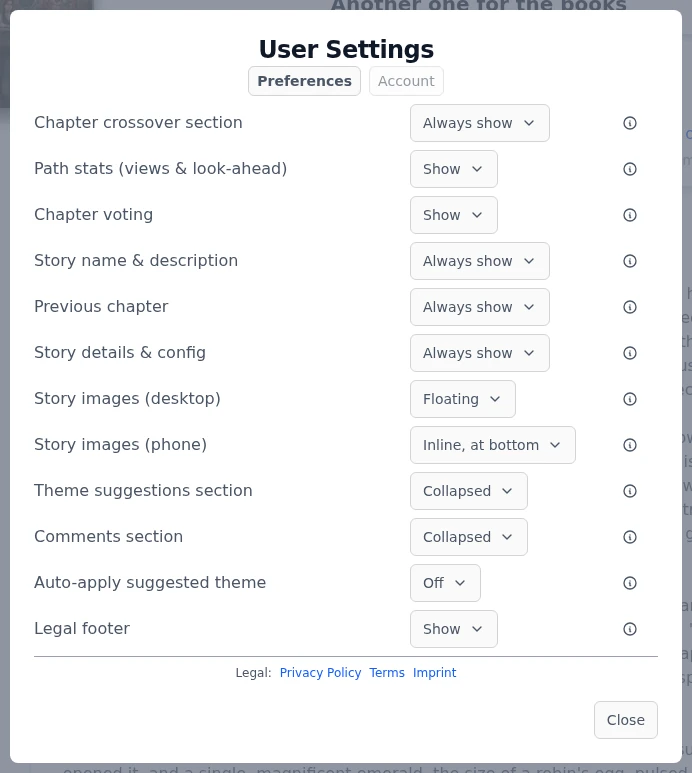
Open User Settings from the gear at the bottom of the sidebar. The Reading tab lists one row per section of the chapter-reading page. The two rows that change the feel of reading the most are Path stats and Chapter voting: the first removes the eye percentages and binocular numbers from every choice, the second removes the thumbs and rating scores from every chapter.One row per section. Changes apply immediately.The other rows on the Reading tab follow the same idea. Story name & description and Previous chapter remove the cards above the chapter you are reading. Chapter crossover, Theme suggestions and Comments control the blocks below it, each with a Collapsed or hover mode that keeps them one click away instead of gone. On the Images tab, Story images can go Hidden per device, which also skips downloading them. The full row-by-row tour lives in basic settings .
What disappears
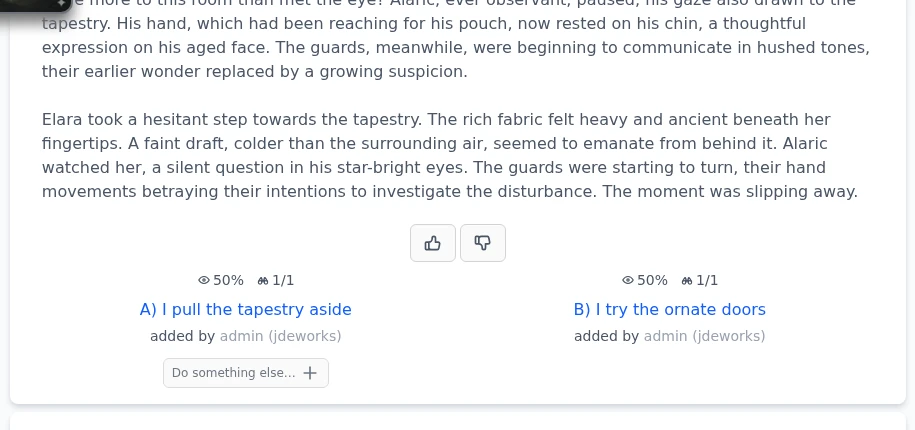
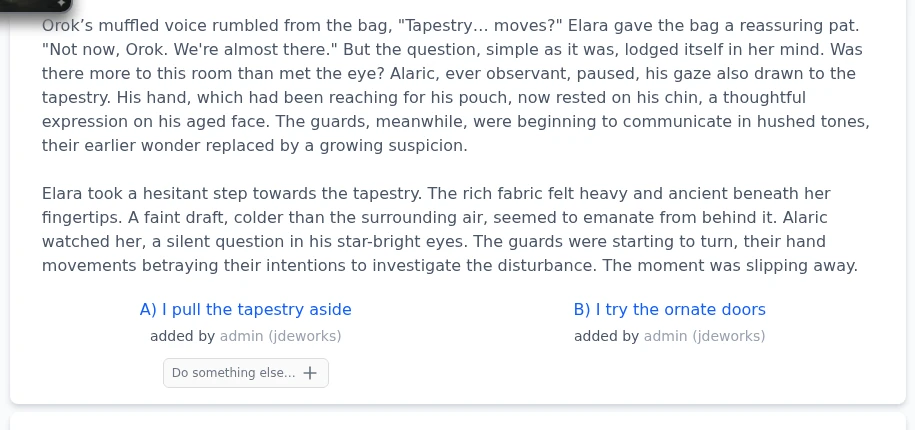
The default view keeps you informed: thumbs under the text, and stats on every explored choice showing where readers went and how much lies ahead.Default: thumbs plus eye and binocular stats on every choice.With path stats and chapter voting set to Hide, the same spot reduces to the story itself: text, then choices. No numbers competing with the prose, no scores to check.The same chapter with both rows on Hide: just the story and its choices.
Everything keeps working underneath. Votes from other readers are still counted, choices still track their stats. Turning a row back to Show brings the numbers back instantly, nothing is lost in between.
The Clutter-free Reading themes
The toggles decide what is on the page. Community themes decide how the rest looks. Two shared themes were built exactly for this reading style: Clutter-free Reading and Clutter-free Reading Dark tone down the chrome around the text so the chapter carries the page.
Open the Designer with the paint button in the top right toolbar.
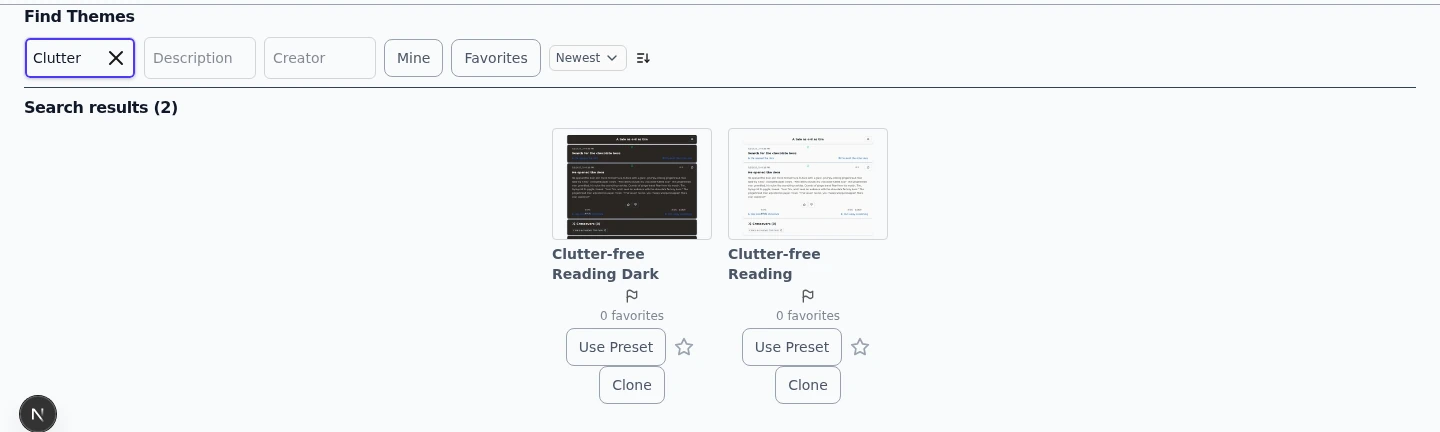
Click Themes, then type Clutter into the Name field under Find Themes.
Press Use Preset on the variant matching your light or dark mode. The look applies immediately.
Optional: press the star on the theme card. Favorites appear under Themes in the sidebar, so switching back and forth is one click.
Search for Clutter under Find Themes: one light and one dark variant.Themes and toggles are independent, so combine them freely. If you want to go further and restyle individual elements yourself, the themes & Designer guide covers the whole system.
Best practices
Prefer Collapsed over Hide for comments and theme suggestions. They stay reachable behind one click instead of vanishing.
Set up each device for its job: phone fully minimal for reading in bed, desktop with stats visible for exploring and writing.
Hide path stats when you want to choose with your gut. The percentages nudge you toward the popular path, and ignoring them reads fresher.
Favorite the Clutter-free theme instead of rebuilding it. The star puts it in your sidebar, and Reset all to Default in the Designer undoes any theme in one click.
If images pull you out of the text, set the story images rows to Hidden on the reading device. That also saves bandwidth on the go.
Under the hood
All preference rows persist in browser localStorage, which is why they apply instantly and work signed out. Signed in they are also mirrored onto your account, so a second device starts from the same setup instead of the defaults.Hide on mobile is resolved at render time against the small-device rule (720px width, or a short touch screen such as a phone held sideways), so one browser window can flip behavior when resized.Hiding vote buttons or path stats skips rendering those components. Ratings and path statistics are still recorded and served to everyone who shows them.The Clutter-free Reading themes are regular shared Designer themes: a set of per-element styling overrides applied on top of the defaults. Use Preset copies them into your local styling, so a later Reset all to Default removes them cleanly.The Hidden image mode does more than hide: the image request is never made, which is also the data-saver option.