Every story starts private. From there you decide: publish it to the whole library, share it as an unlisted link, embed it on your own website, or invite specific people to read and co-write. Comments and the social hub tie the collaboration together.This guide shows where each control sits, what the three visibility levels mean, and how invites flow from you to a co-writer and back.
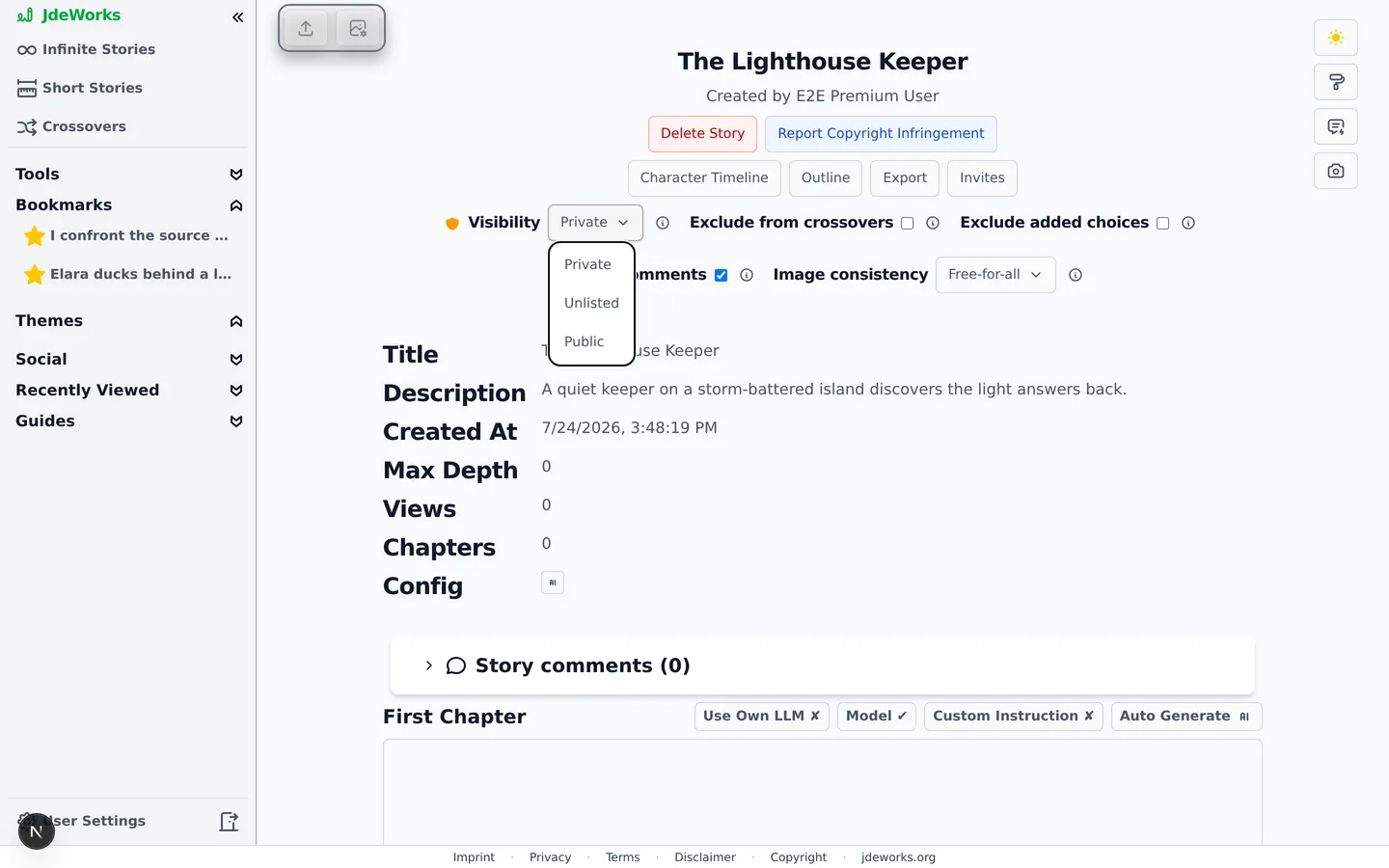
As the owner, you find the Visibility dropdown inside the Story details block on your story's overview page. That block now opens collapsed on every visit, so tap it open first. Visibility has three options. Private: only you and people you invite can see the story. Unlisted: anyone with the link can read it, but it never appears in search, discovery or statistics. Public: visible to everyone and listed in search and discovery.Three levels, switchable at any time. New stories start private.Once a story is unlisted or public, a Copy link button appears next to the dropdown and puts the reader link on your clipboard. That link is all an unlisted story needs: no account required on the reading side.
Unlisted is the middle ground for sharing drafts. Friends can read along without the story showing up in the Story Finder .
Embedding short stories
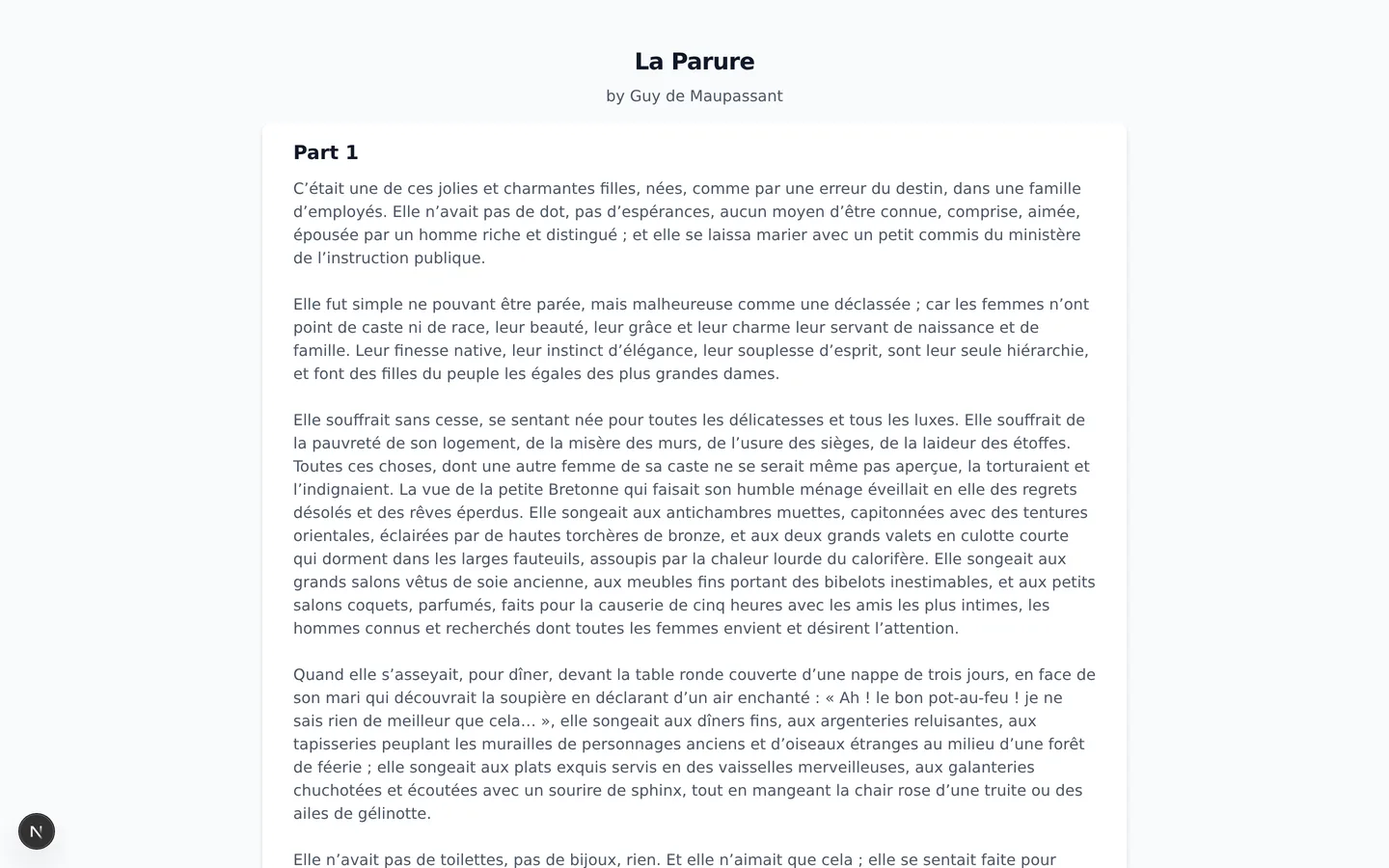
Short stories go one step further. For an unlisted or public short story, a second button appears: Copy embed link. That link points to a stripped-down page made for iframes on your own website. It shows the title, the author, every chapter as text, and a Read on Infinite Stories link back to the app. No sidebar, no controls, and deliberately no images: the embed stays lightweight text.The embed page: just the story, ready for an iframe.Embedding is deliberately limited to short stories, since they are self-contained and read top to bottom. You can force a specific look inside the iframe by appending a ?theme= parameter to the embed link, which applies that theme to the page regardless of the visitor's settings. If an embedded story later goes private, the page shows a neutral This story is unavailable message instead of the content.
Inviting co-writers
Private stories can be opened to specific people, and so can unlisted or public stories with the continuation lock on. On such a story you own, the Invites button opens the invite manager.
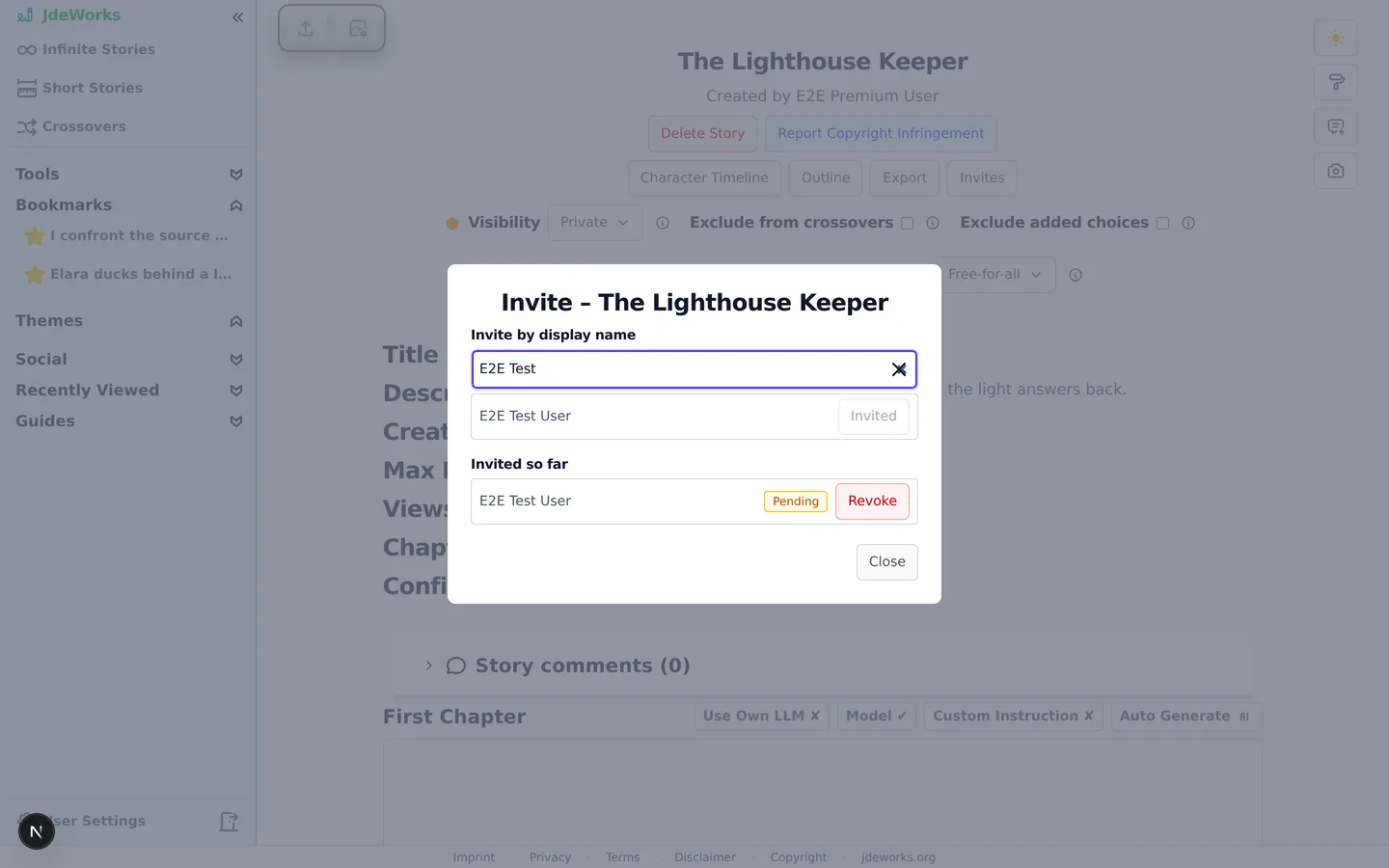
Under Invite by display name, type at least three characters of the person's name.
Click Invite next to the right person in the results.
The Invited so far list tracks every invite with its status: Pending, Accepted, Declined or Revoked.
Changed your mind? Revoke withdraws a pending or accepted invite.
Search by display name, invite, and track the status.An accepted invitee gets real collaboration rights: they can read the private story, continue it with new chapters and leave comments. There are no finer role settings. An invite is trust to co-write.The continuation lock sits in the same collapsed Story details block, next to Visibility: Only I and people I invite can continue. With it on, everyone your visibility allows can still read the story, but only you and accepted invitees can add chapters or choices or build a crossover from it. It can be flipped at any time, and fan fiction starts with it on. See groups .
The social hub
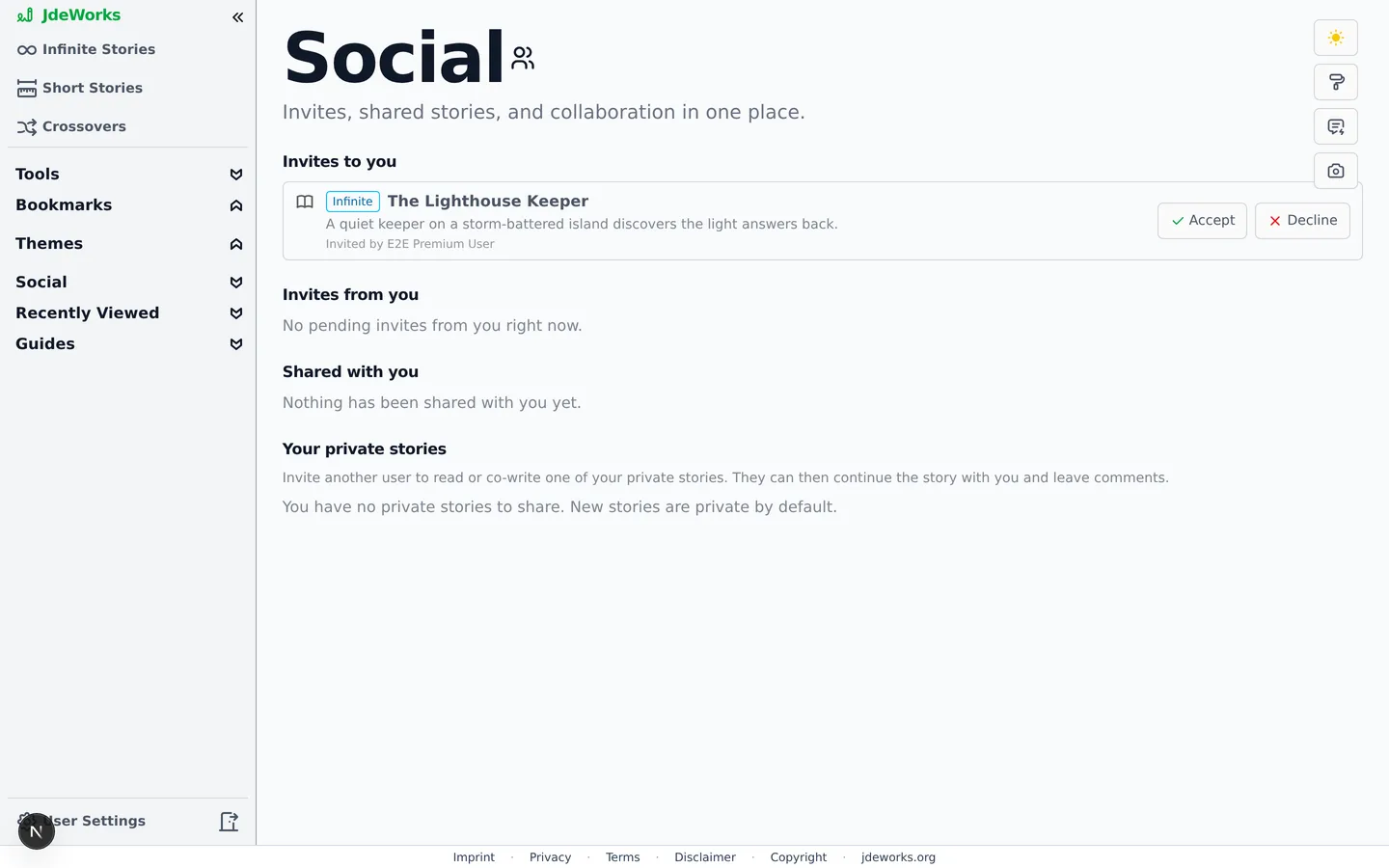
The receiving side lives on the Social page, reachable via Social hub in the sidebar. Five sections cover everything: Invites to you with Accept and Decline buttons, Invites from you for the ones you sent, Shared with you listing stories you accepted, Your private stories as a shortcut to invite people to any of them, and Groups for the groups you belong to.Invites, shared stories, and collaboration in one place.Pending invites also surface directly in the sidebar's Social group, so you can accept or decline without visiting the page. The hub has its own tour in the Social hub guide .
Comments
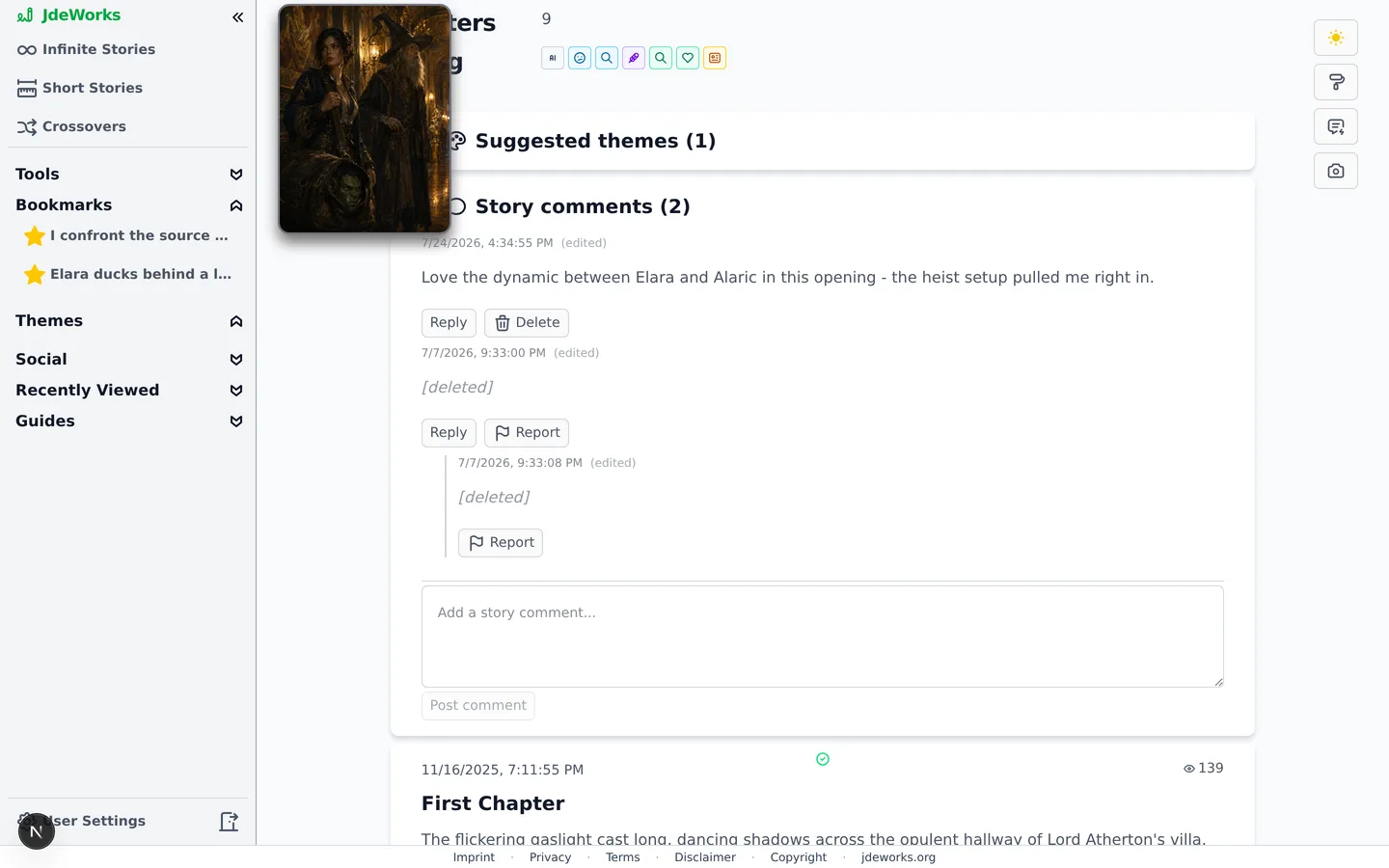
Readers can discuss stories in two places: Story comments on the overview page, below the chapter text, and Chapter comments under each chapter. Writing a comment requires a login, reading them does not. Comments support replies, editing within 15 minutes, deleting your own, and a Report action on anything that crosses a line.Story-level and chapter-level threads, open to every logged-in reader.As the owner you stay in control: the Enable comments toggle next to the visibility control switches new comments off for the whole story, and you can delete any comment on your own stories. If comment sections clutter your reading view, basic settings can collapse or hide them.
Best practices
Keep stories private while drafting, share an Unlisted link with early readers, and go Public when the opening chapters hold up.
Invite co-writers on private stories instead of publishing early. Accepted invitees can write chapters with you before anyone else sees the story.
Revoke invites that stay pending for weeks, so the Invited so far list reflects the real team.
Use the embed link on your own website or blog to funnel readers into the app. The embed page links back to the full story.
Check the sidebar's Social group regularly. Pending invites to you appear there without visiting the hub.
Under the hood
Visibility is a single story attribute behind one endpoint. Unlisted stories are excluded from search, discovery and statistics server-side, and their reader pages work for anonymous visitors who have the link.The embed page serves only short stories by design and accepts an optional theme parameter to force a specific look inside the iframe. Private, removed or wrong-type targets all render one neutral unavailable message that does not reveal the reason.Invites are searched by display name with a server-side result cap, so e-mail addresses never surface. Accepting grants read, co-write and comment rights on that one story. Revoking removes them again.Comments are stored per story and per chapter with a 2000 character limit. Edits are allowed for 15 minutes after posting, reports go to a moderation queue, and the owner's comments toggle only blocks new comments while existing ones stay visible.None of the sharing features cost credits and none require premium. The gates are ownership for the controls and a login for writing actions.