The Story Finder searches the whole public library: every public story, every chapter, filterable by type, language, length, rating and more. It works without an account, so you can browse before you ever sign up.This guide covers the story filters, the results table, the chapter-level search underneath it, how to find everything one creator has published, and the shortcut that turns any config badge in the app into a search.
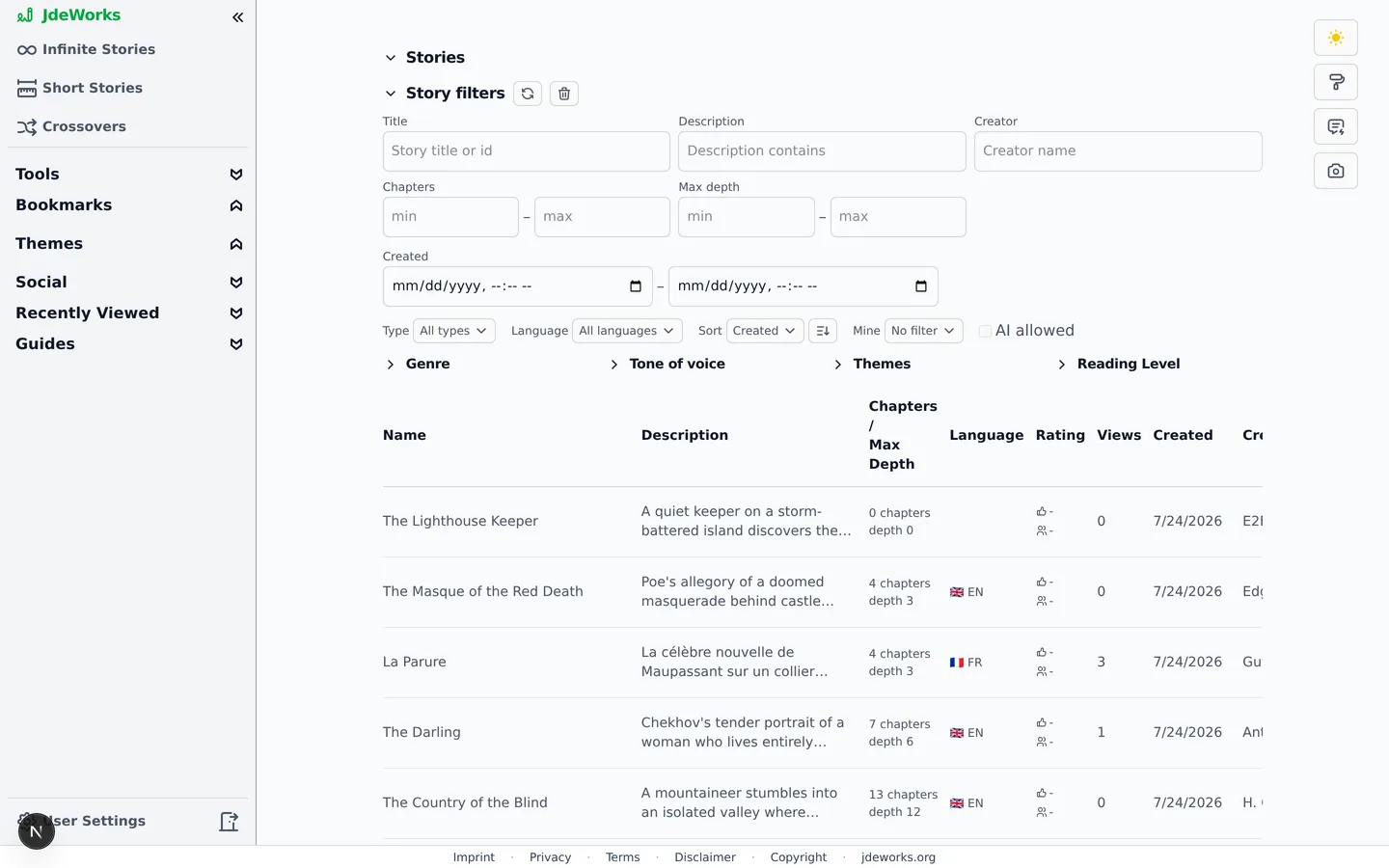
Click Story Finder in the sidebar's tools group. The page shows a collapsible Stories block with the Story filters panel on top and the results table below. Results update automatically a moment after you change any filter. There is no search button to press.Filters on top, results below. Everything updates as you type.
Logged out you see public stories only. Logged in you additionally get the Mine filter to include or exclude your own stories.
Narrowing down with story filters
The panel combines free-text fields, ranges and dropdowns. All active filters are counted in the panel header, and the trash icon (Clear all filters) resets everything at once.
Title, Description and Creator are free-text fields. Type a fragment and matching stories appear.
Chapters and Max depth take a min and max number, useful for finding short reads or deep epics.
Created limits results to a date range.
Type picks between Infinite , Short and Crossover . Sort orders by Created, Views, Chapters, Max depth, Name or Best rated, with a direction toggle next to it.
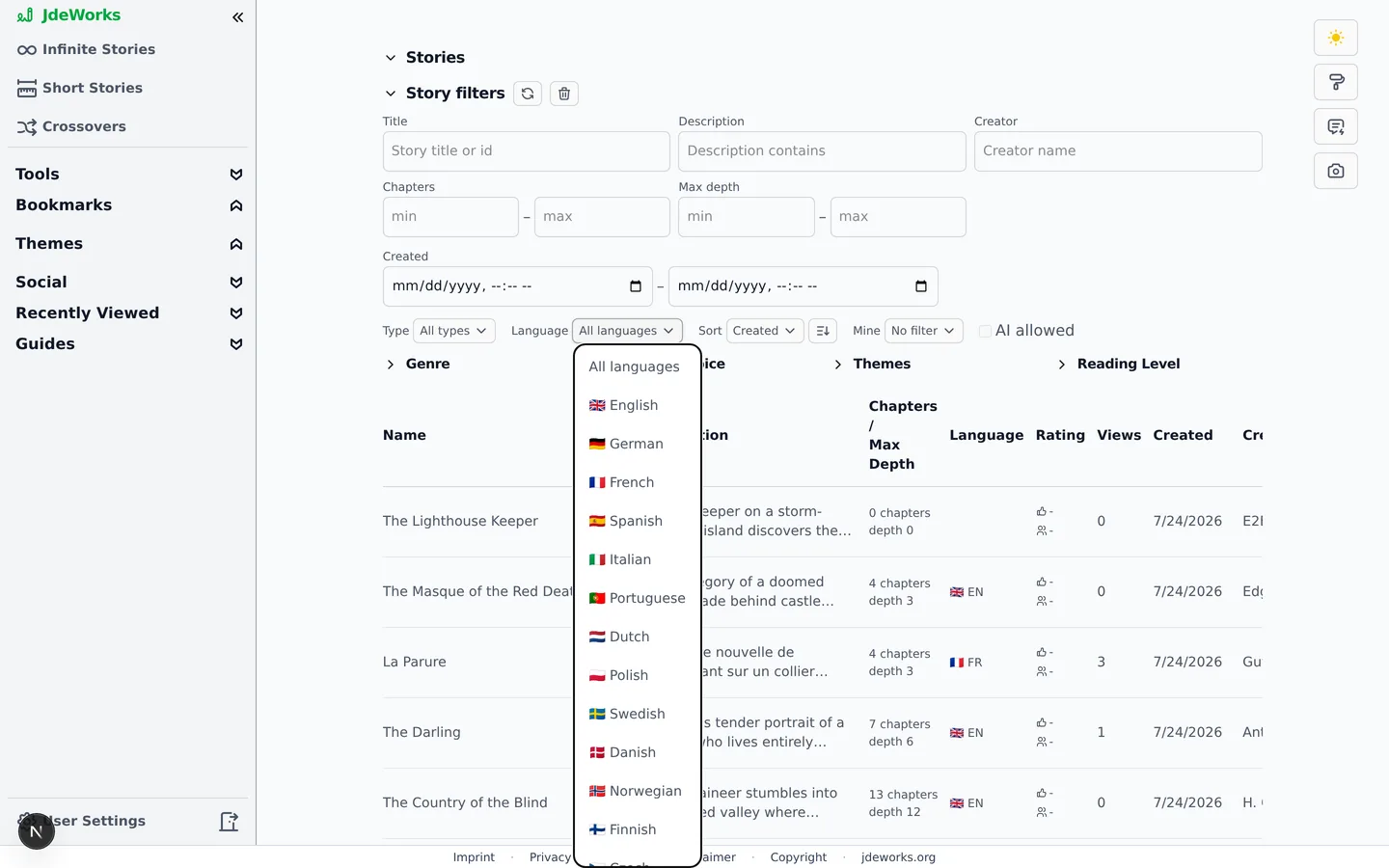
Language lists story languages with their flags. Pick yours to read in your own language. The overview pages carry the same filter now, so the finder is for combining it with everything else. See stories in your own language .
Pick the language you read in. Authored languages and detected ones filter alike.The AI allowed checkbox has three states: greyed out means not filtered, checked finds stories with AI features enabled, unchecked finds stories with AI disabled. Clicking cycles through the states.
Genre, tone, themes and reading level
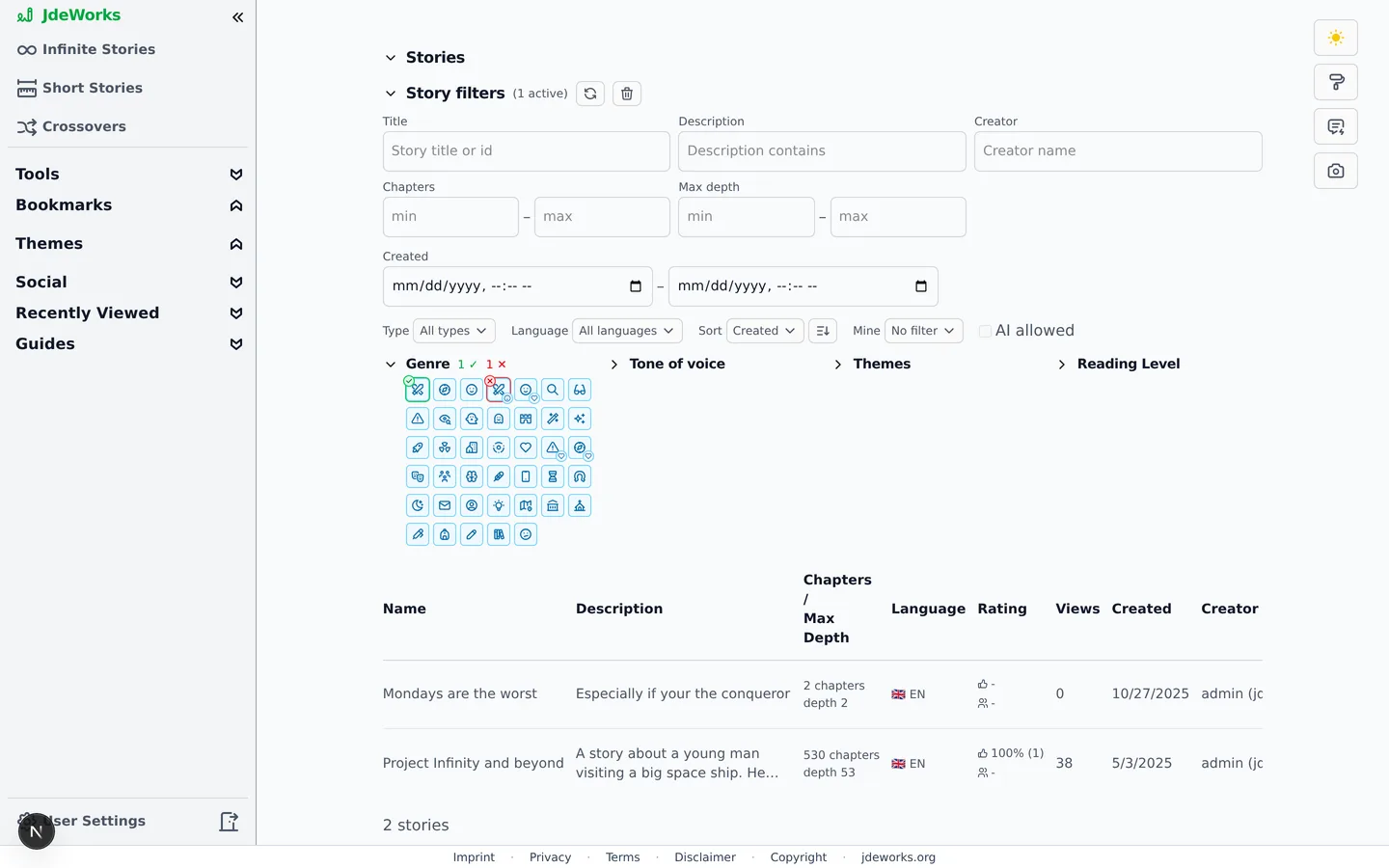
Four expanders below the main filters hold the classification badges: Genre, Tone of voice, Themes and Reading Level. Each badge cycles through three states when clicked: neutral, include (green ring with a check) and exclude (red ring with an X). Hover a badge to see its name and description.Green includes, red excludes, neutral ignores.
With several genres included, a mode toggle appears in the expander header. ANY matches stories with at least one of them, ALL demands every single one.
Jumping in from a config badge
The same badges appear all over the app: on every row of the story tables, on story landing pages and on chapter cards. They are clickable there too. Click the genre badge on a story you liked and the finder opens with that genre already included, so "more like this one" takes one click instead of a trip through the filter panel.Tone, theme and reading-level badges work the same way. The AI allowed badge sets the AI filter, and the short-story and crossover badges set the Type filter. A badge showing an unrecognised value stays inert, because there is nothing to search for.
Clicking a badge from outside the finder starts a fresh search. Clicking one on a result row inside the finder adds it to what you already have, so a query you have been building is never thrown away.
Results and chapter-level search
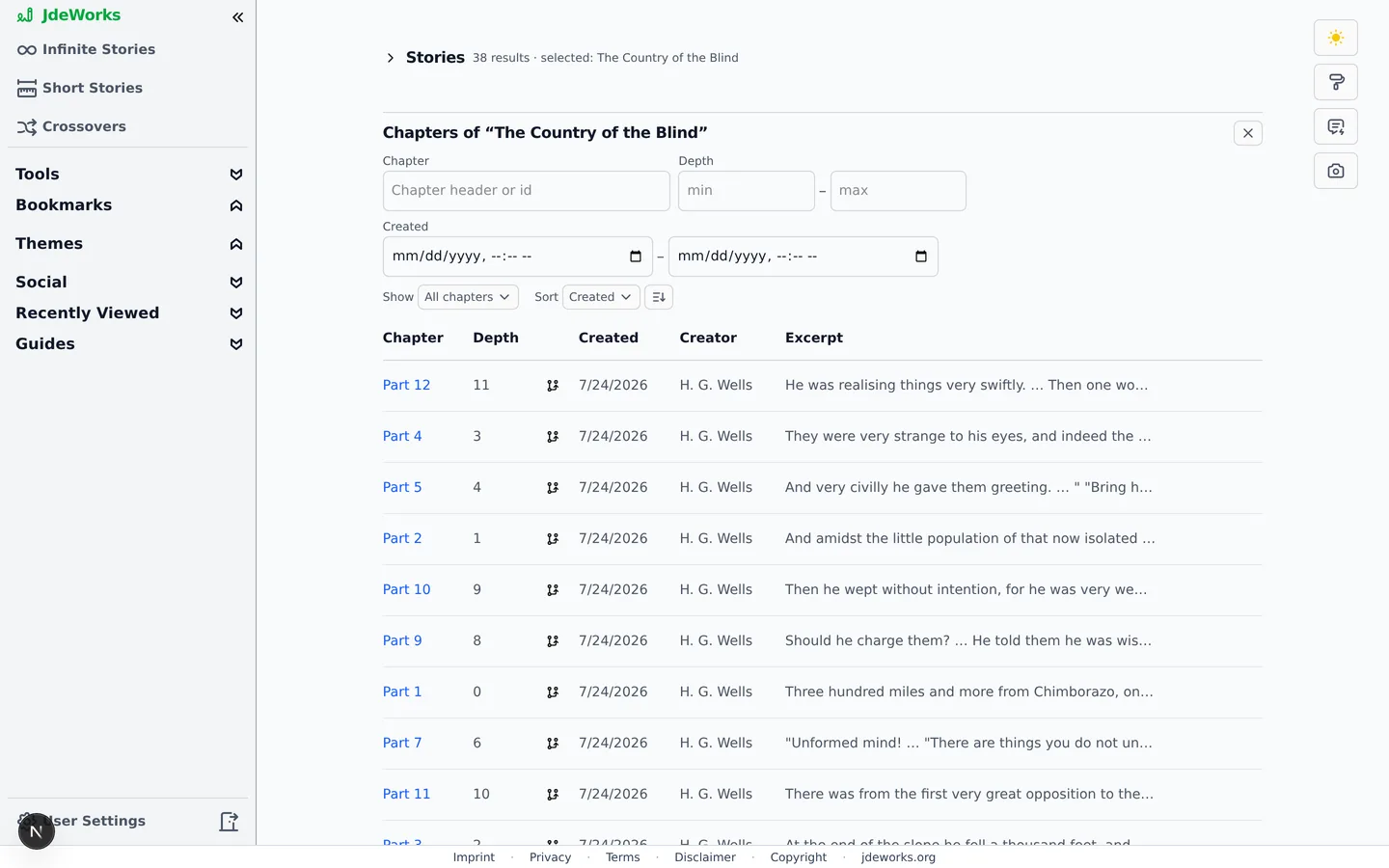
Result rows show name, chapter count and max depth, a language badge, member and guest ratings, views, creation date, creator and the story's config icons. The Open link at the end of a row jumps straight into the story.Clicking anywhere else on a row selects the story and opens a second panel below: Chapters of that story. It has its own filters for chapter header, depth, creation date, a Show dropdown (All chapters, With continuations, Dead ends) and its own sort. Chapter results link directly to the chapter, so you can drop into the middle of a branching story.Click a story row and its chapters become searchable too.Both tables paginate at 20 results per page, with the total count always visible below the table.
Finding more by one creator
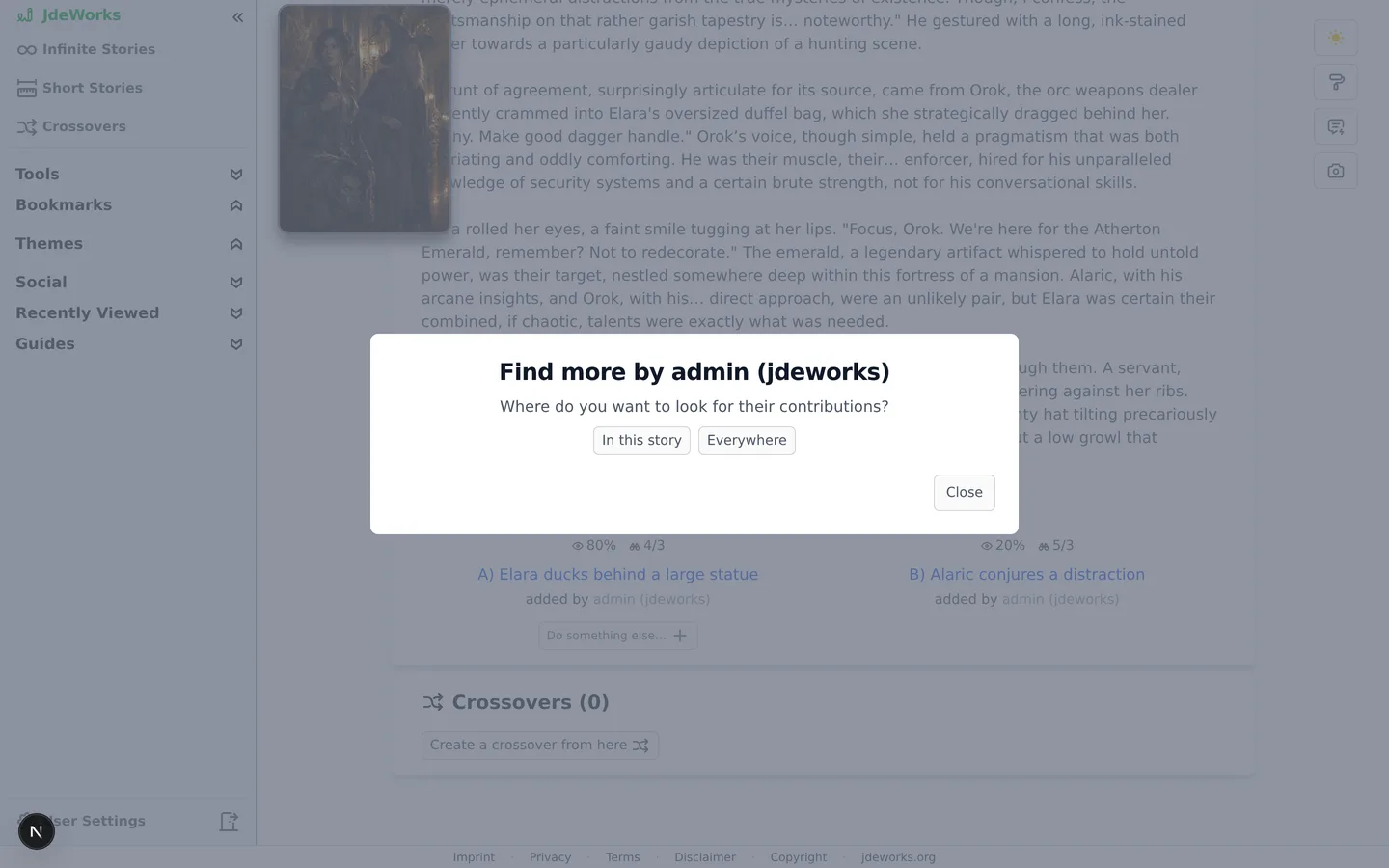
While reading, chapter attributions are clickable. Clicking one opens the Find more by dialog, which asks: Where do you want to look for their contributions? Choose In this story to filter this story's chapters down to that person, or Everywhere to see all their public stories in the finder.One click on a chapter attribution leads here.You can also just type a name into the Creator field of the story filters. The dialog route is the precise variant: it filters by the exact account instead of a name fragment.
Best practices
Start broad and let the automatic search do the work: pick a Type and a Language first, then refine with genre badges.
Use exclude on badges to remove whole categories, for example excluding Horror while browsing Fantasy.
Sort by Best rated with a minimum chapter count to surface stories that readers actually finished and liked.
Use the chapter panel's Dead ends filter on a story you like to find branches nobody has continued yet, then continue one yourself.
Logged in, set Mine to Exclude mine while hunting for new reads, so your own stories stop cluttering the results.
Under the hood
Searches run against a dedicated finder endpoint with offset pagination at 20 rows per page. Filter changes are debounced by 400 milliseconds before a request fires.Results are cached in the browser for five minutes per exact filter combination, so navigating into a story and back restores the list without a refetch.Anonymous requests return public stories only. The Mine filter and private rows require a logged-in session.Story language is detected server-side from the generated text and stored as an ISO 639-1 code. The Language filter matches that code exactly.The exact-creator filter set by the Find more by dialog matches the account id, so renamed creators are still found. The free-text Creator field matches the display name instead.