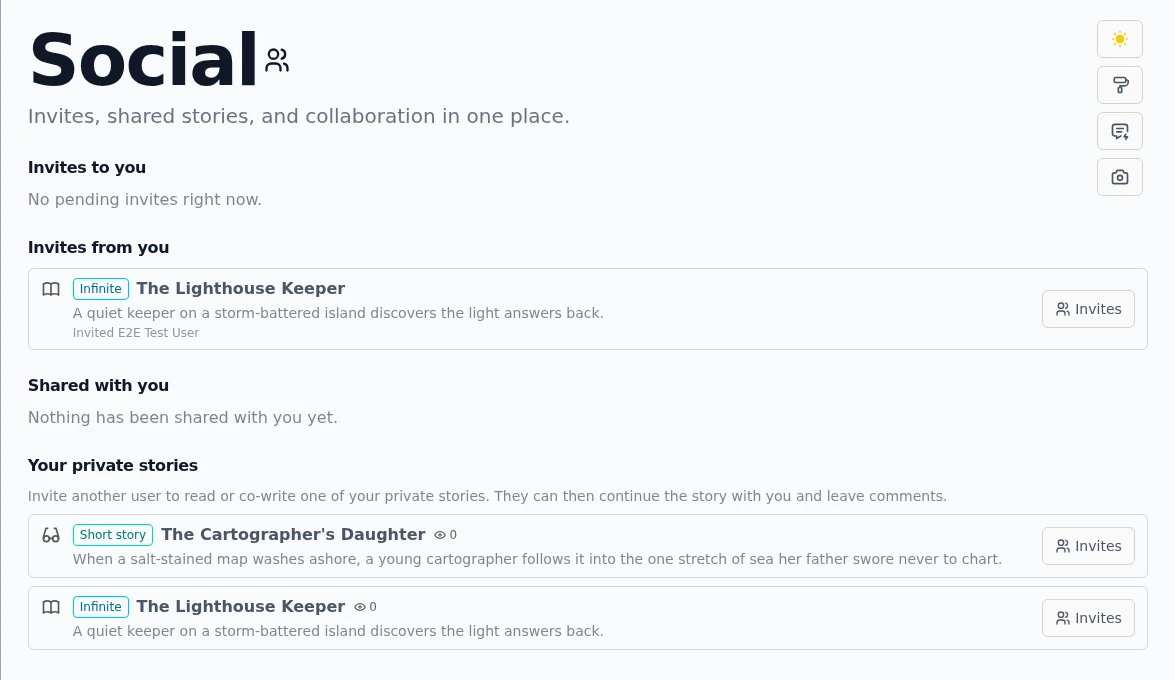
The Social page is your dashboard for everything that happens between you and other writers: invites waiting for your answer, invites you sent, stories people shared with you, and a shortcut to open any of your private stories for a co-writer, plus the groups you belong to. One page, five lists, no hunting through story screens.This guide walks through the hub itself. For the underlying mechanics, how visibility levels work and what an invite actually grants, see sharing & collaboration .
The sidebar has a collapsible Social group. Expand it and Social hub takes you to the page. The group is more than a link: while invites are pending or stories are shared with you, they appear right there in the sidebar under Invites and Shared with me, so you can accept or decline without opening the hub at all.The Social group in the sidebar. Pending invites and shared stories appear here too.
The hub needs a login. Logged out, the page just explains what it would show and asks you to sign in.
The five sections
The page stacks five sections. Invites to you lists stories others opened for you, each with Accept and Decline buttons. Invites from you tracks the invites you sent. Shared with you holds every story you accepted. Groups lists the groups you joined or created with any group invites waiting for your answer, and links to Browse groups - see groups . Your private stories, last, lists your own private stories with a one-click way to invite someone into each.The whole social picture on one page.Every row shows the story type at a glance: a colored badge for Infinite, Short story or Crossover, plus the story's description and, where available, its view count. Clicking a story title opens the right screen for its type.
Acting on invites
Under Invites to you, read the story name, description and who invited you, then hit Accept or Decline.
Accepted stories move into Shared with you and stay there as your entry point to the story.
Under Invites from you, each row shows who you invited. The Invites button reopens the invite manager for that story, where you can track statuses and revoke.
Sent invites stay visible until they are answered or revoked.Accepting is a commitment worth understanding: an invitee can read the private story, continue it with new chapters and comment on it. The sharing & collaboration guide covers the invite manager and the four invite statuses in detail.
Sharing your own private stories
The fourth section, Your private stories, exists so you never have to remember where the invite button lives. It collects your private infinite stories and short stories in one list. Hit Invites on any row and the invite manager opens for exactly that story.Every private story you own, one click away from a co-writer.
New stories start private, so this list is also a quiet overview of everything you have not published yet.
Finding people and their work
The hub shows people you already write with. To discover creators, start from the stories themselves: while reading, the added by attribution under a choice and the creator names on chapters are clickable and open the Find more by dialog, which can pull up everything that person published. The Story Finder guide explains that flow and the Creator filter.From there the circle closes: read something you like, leave a comment (see comments, ratings & reporting ), and when a collaboration forms, the invites land right back on this page.
Best practices
Check the sidebar's Social group as part of opening the app. Pending invites surface there without a page visit.
Answer invites promptly, even with a Decline. The sender sees the status and can stop waiting.
Use Your private stories as your sharing launchpad instead of digging through story pages for the invite button.
Treat Shared with you as a reading list. Rows link straight into the story, with the type badge telling you what kind of read to expect.
Found a creator you like through a story? Follow their added by link to their public work before inviting them to yours.
Under the hood
The hub refreshes its invite and shared-with-me feeds every time you enter it, so it stays current even if an invite arrived mid-session. The sidebar lists are fetched once on app load and updated optimistically when you accept or decline.Your private stories is assembled client-side from your own infinite-story and short-story overviews, filtered to private ones. Crossovers appear under Shared with you and Invites once shared, routed to their own screen.Accept and decline are one call each and update both the hub and the sidebar without a reload.Rows carry the story type so links route correctly: infinite stories to the story page, short stories to the short-story reader, crossovers to the crossover screen.Nothing on the Social page costs text credits or requires premium. Everything is gated only by login and by story ownership.