Every infinite story starts as a setup, and the setup is free. In the default Simple experience, the Create a Story wizard collects the story's feel, language, length and details in three focused steps. No chapter is generated along the way.This guide covers the focused path first, then identifies the extra setup and generation controls available in Advanced. It also shows both ways to put a first chapter on the page: writing it yourself or letting the AI generate it.
Create a story with guidance
Build and privately save a two-chapter branching story.
About 14 interactionsVerified account and generation credits
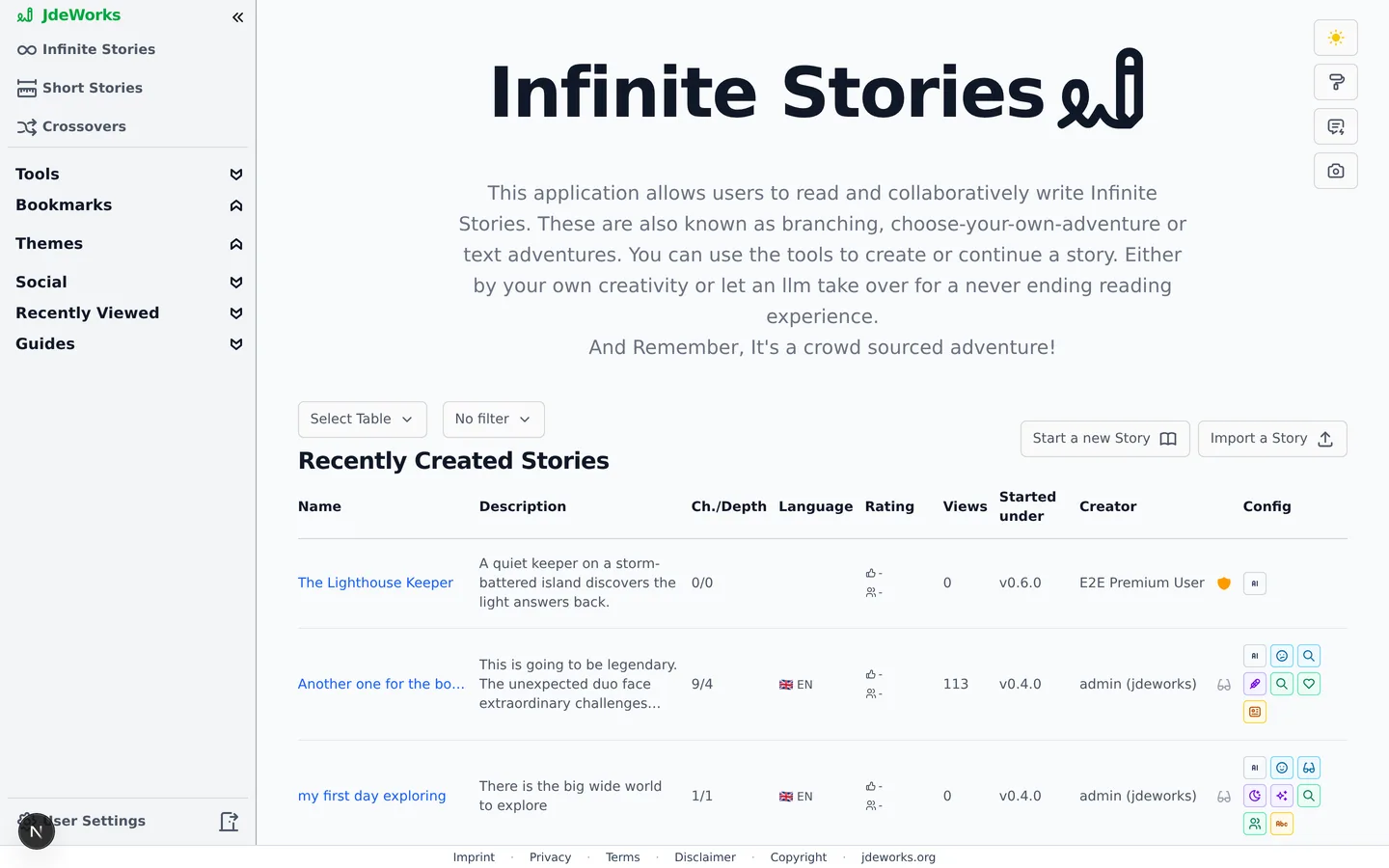
On the home page, logged in, click Start a new Story. In Simple, the Create a Story dialog opens with Basics, Config and Details. Advanced adds a fourth Starting setup step between Basics and Config.Start a new Story lives on the home page, next to Import a Story.Move forward with Next and back with Back. Steps you have already visited stay clickable in the progress bar. Only one field in the whole wizard is required: the story name in the last step. Everything else can stay empty.
Basics and Advanced starting setup
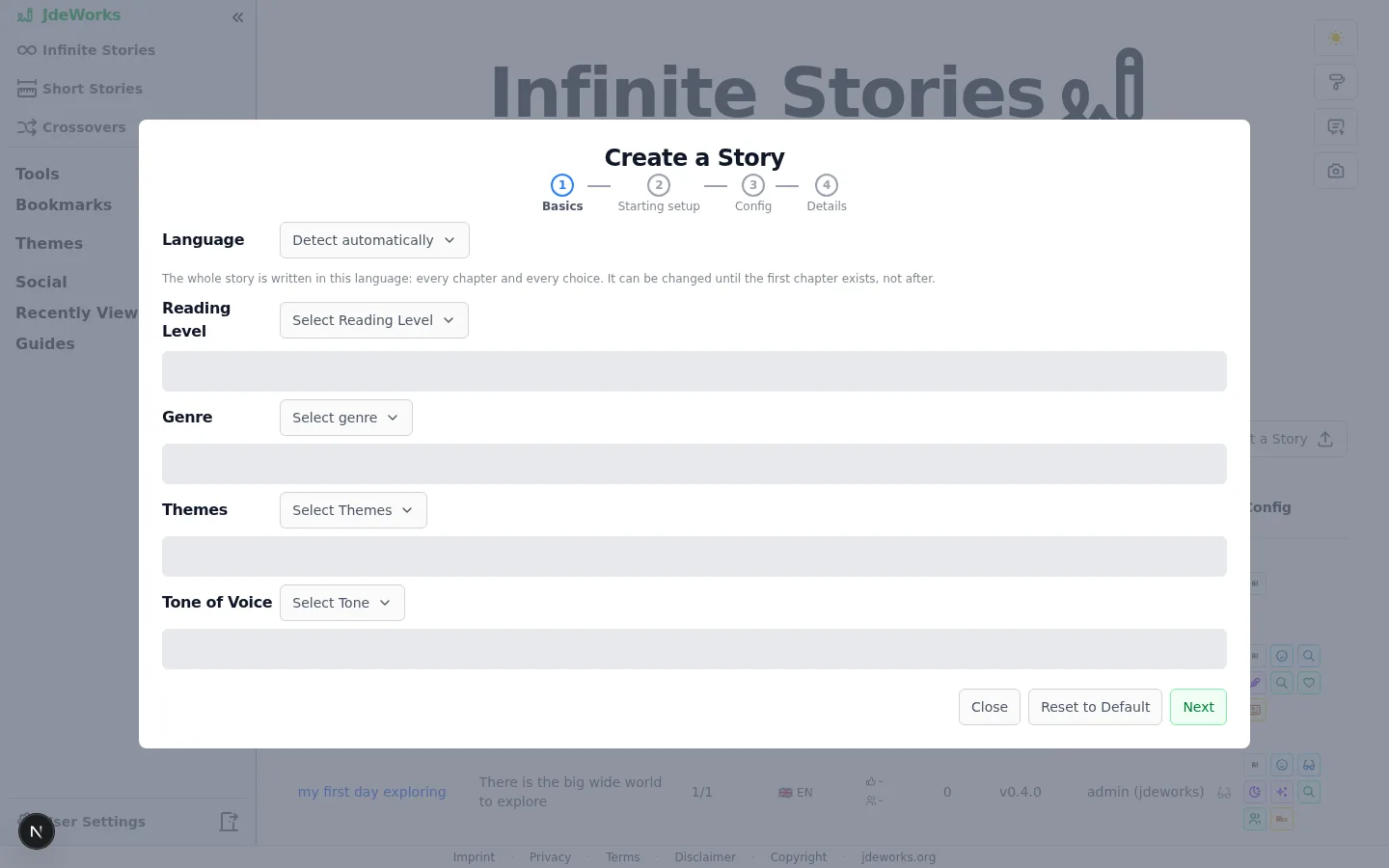
The Basics step sets the flavor. Reading Level is a single dropdown, and its Own entry unlocks a free-text field for anything the presets do not cover. Genre and Tone of Voice accept several picks. Advanced also shows Themes here.Reading Level is a single choice. Genre, Themes and Tone collect multiple picks.
Two or three strong picks beat a long list. You can also leave fields empty here and let the AI fill them later via Fill missing setup in the Details step.
In Advanced, the Starting setup step attaches reusable characters and scenes to the story, as two scrolling sections rather than separate steps. Both are optional and both have their own guides: see the Character Builder and the Scene Builder . Anything you attach becomes material the AI weaves into chapters. If public research briefs exist, a Research doc (optional) dropdown at the bottom of the step lets you ground the story in one.
Config and details
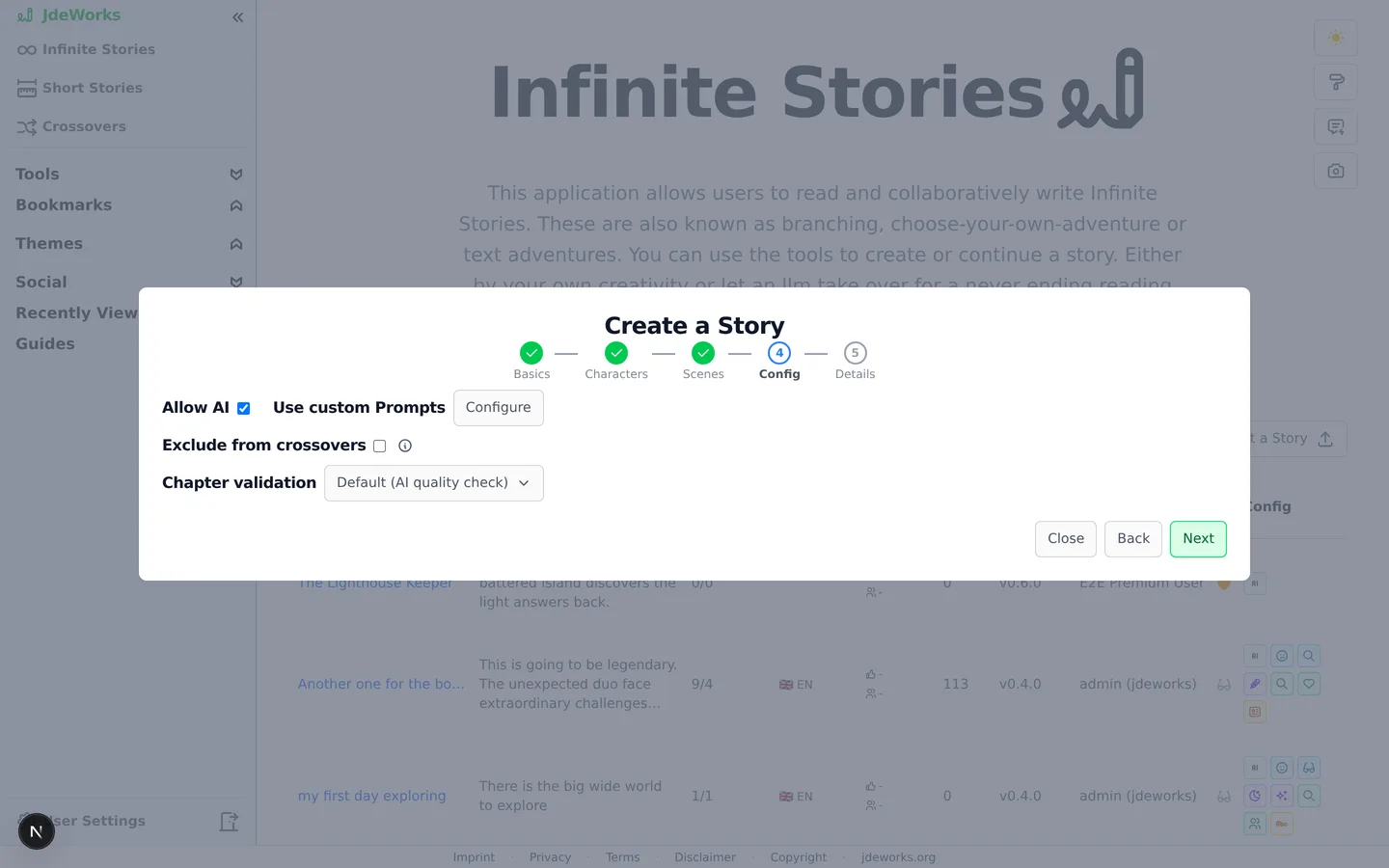
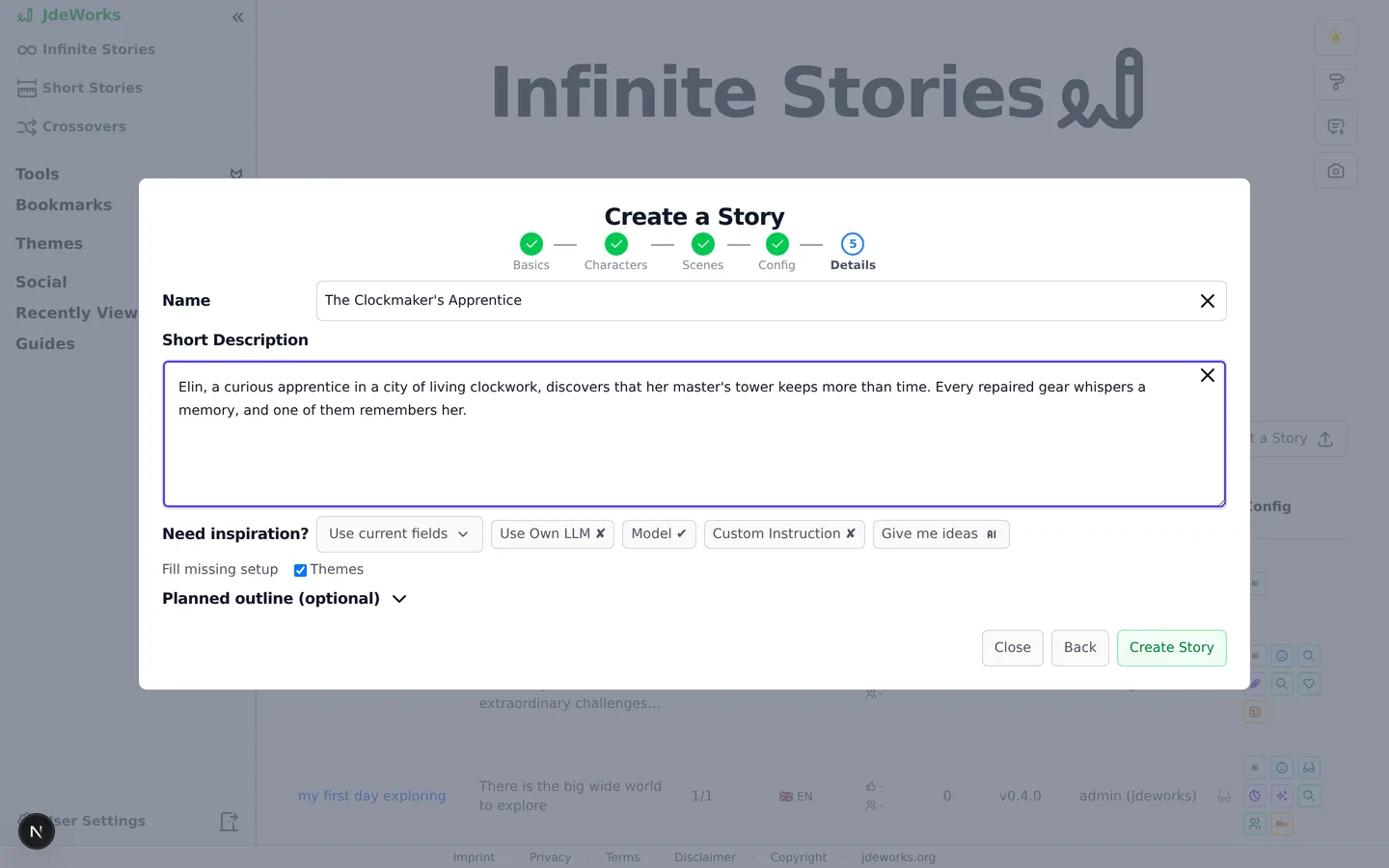
The Config step opens with Language and Chapter Length. Language defaults to English: pick another and every chapter and choice is written in it instead. It can only be changed until chapter one exists, so it is worth a moment now: see stories in your own language . Chapter Length picks a per-chapter word target from six steps, 100 to 3,000 words, and unlike Language it can be changed at any time. Word counts are targets, not guarantees: how closely a chapter lands varies with the model and the story. On the default model a chapter costs one credit, and half a credit at 500 words or fewer, see credits & premium .Advanced shows technical switches below those fields. Allow AI is on by default. Turning it off makes this a purely hand-written story and hides the generation buttons. Use custom Prompts opens the prompt override via its Configure button, covered in the power tools guide . Exclude from crossovers keeps your story out of other people's crossovers. Chapter validation picks how chapters are checked before publishing, from the default AI quality check down to a plain regex or no check at all.The defaults work for almost everyone. Allow AI stays on, validation stays on the AI quality check.The Details step names the story. Name is the one required field, up to 50 characters. Short Description takes up to 5000 characters and doubles as the pitch readers see. Under Need inspiration?, the Give me ideas button generates five name and description options. Click any card to apply it. The dropdown next to the button decides whether your current fields constrain the ideas (Use current fields) or are ignored (Clean slate).Only the Name is required. Give me ideas can do the rest.The Fill missing setup checkboxes (Genre, Tone, Themes, Reading level) control what a picked idea is allowed to fill in for you. Each checkbox only appears while its field is still empty. A collapsible Planned outline (optional) section at the bottom lets you sketch where the story should go. Click Create Story and you land on the fresh story page.
Creating the story is free. Give me ideas is the only wizard feature that calls the AI, at 0.125 credits per click on the default model.
Your first chapter
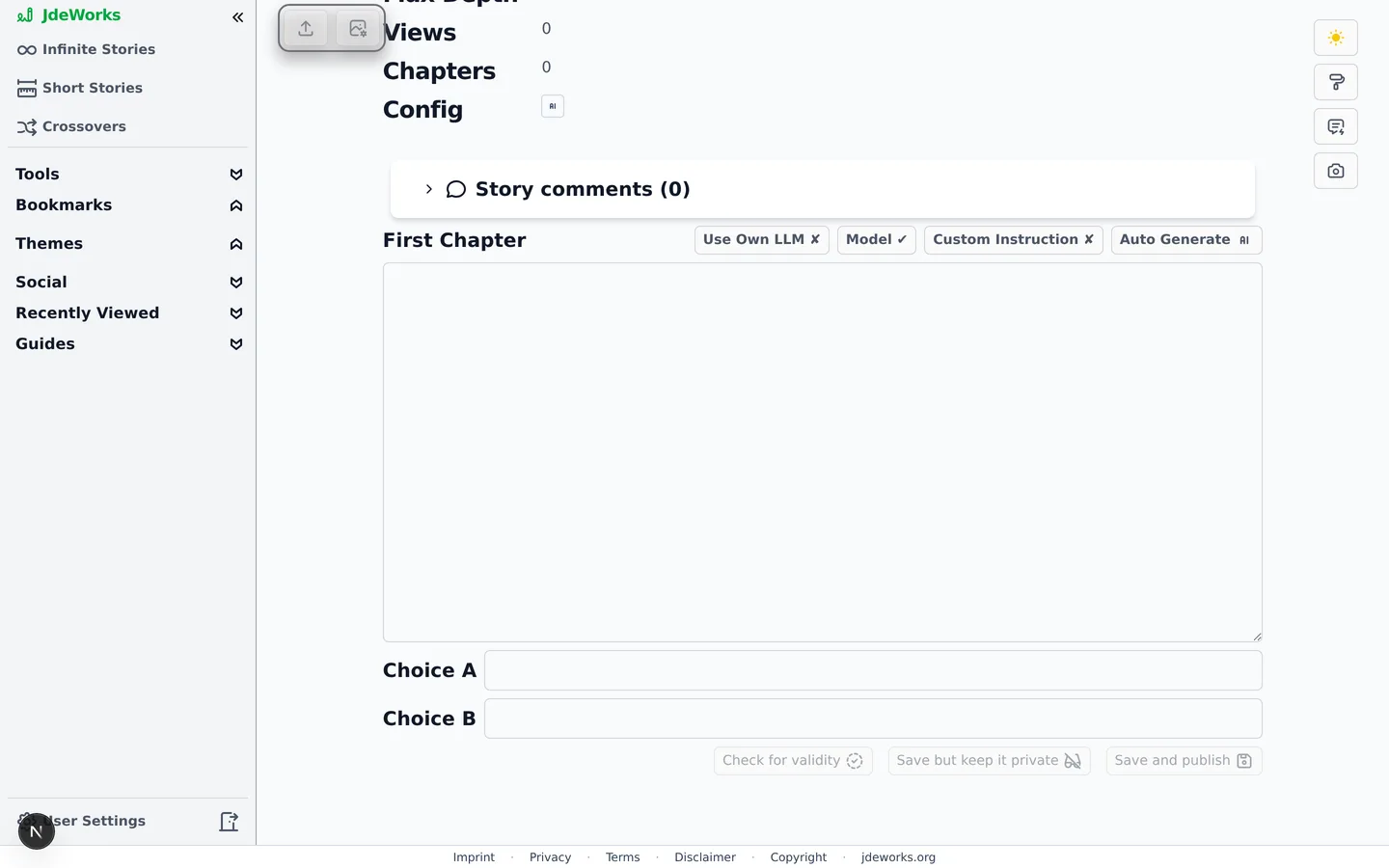
The new story page shows a First Chapter section: a large text area plus two inputs, Choice A and Choice B. Nothing has been generated yet. You decide how the chapter comes to be.The story exists, the first chapter does not. Auto Generate or write it yourself.
In Simple, Generate shows the current application-default cost, then streams a chapter into the text area and fills both choices. Advanced adds Model, Custom Instruction and premium Use Own LLM controls.
Or write it yourself: type the chapter, fill Choice A and Choice B, then run Check for validity if the story uses a validation mode.
Either way you can edit the text before saving. Finish with Save but keep it private or Save and publish.
Hand-written chapters need at least 900 characters, three paragraphs and both choices filled. After the first chapter is saved, the story becomes readable and every choice can grow its own continuation. Private and public are not the only options either: there is also an in-between Unlisted state, where anyone with the link can read but the story stays out of search and discovery, covered in Share, embed & collaborate . How readers move through it is covered in reading and choices .
Best practices
Start light. Pick a genre and a tone, name the story, and let Give me ideas plus Fill missing setup complete the rest.
Set a Custom Instruction before generating the first chapter if the story should run in another language or a specific style. Switching later hurts continuity.
Build characters and scenes in their builders instead of cramming them into the description. They stay reusable across stories.
Keep Allow AI on unless you want a strictly hand-written story. Turning it off hides generation for every future chapter too.
Mix both modes: Auto Generate a draft, then edit the text area before saving. The saved chapter is what you approve, never the raw stream.
Under the hood
Creating a story stores only the setup. No LLM runs and no credits are charged until you press an AI button.Give me ideas returns five name and description options in one go. Each click is a fresh 0.125 text-credit charge on the default model. Premium users generating through their own LLM pay no credits.Auto Generate bills one chapter generation, multiplied by the chosen model's credit factor. The stream ends with a choices block that the app parses into Choice A and Choice B. Costs are detailed in credits & premium .Manual chapters pass a local check (900+ characters, three paragraphs, both choices at least 3 characters) plus the chapter validation mode from the Config step. The regex and None modes run without any AI.NSFW screening always runs on new chapters, regardless of the chosen validation mode.